

You can do this with a workflow made of three steps. Here’s how to set it up:
In the first step you only visit the profiles, in the second you follow them after a delay, and in the third you send the connection request. The steps pass the profiles on through their own target audiences, and the setting “Time in target audience” creates the delay.
- In the Workflows menu, open your workflow with “Edit” or create a new one with “New workflow”. Use “Add function” to add the function Visit & Follow twice and the function Invite once – in this order.
- Workflow, step 1: Visit & Follow (visit only): Click “Edit” on the step and select your target audience under “Select Target Audience” in the “Function” tab. In the “Advanced” tab, set “Follow profiles after visiting” to “Deactivated”.
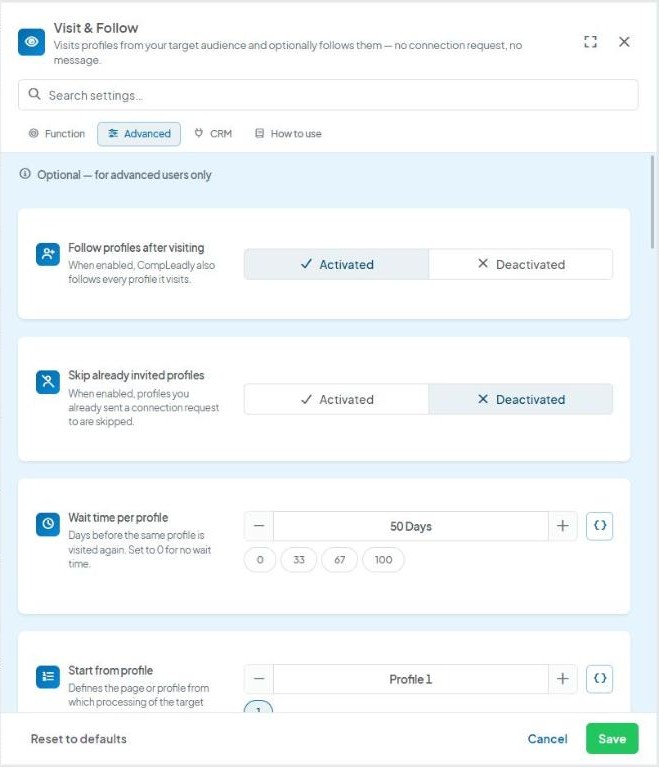
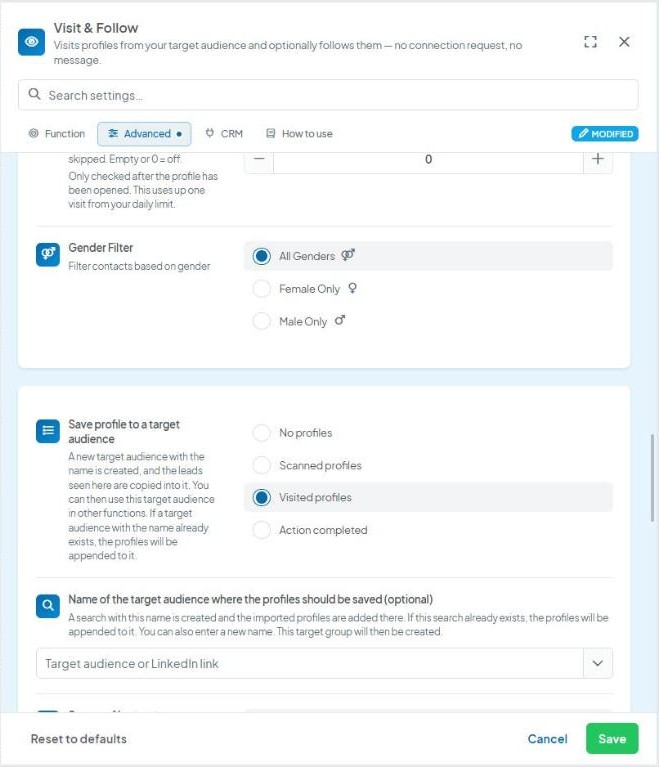
Further down in the “Advanced” tab, under “Save profile to a target audience”, choose “Visited profiles” and enter a new name under “Name of the target audience where the profiles should be saved”, e.g. “Visit-Follow-Invite – visited”. The target audience is created automatically. Click “Save”.
- Workflow, step 2: Visit & Follow (follow after a delay): Select “Visit-Follow-Invite – visited” as the target audience. In the “Advanced” tab, set “Follow profiles after visiting” to “Activated” and “Wait time per profile” to 0 so that the profiles visited in step 1 are visited again here.
- In the same tab, activate “Time in target audience” and enter the delay you want in hours under “min”, e.g. 24 hours for one day. Set “max” high enough that no profiles drop out – the upper bound excludes older contacts. Under “Save profile to a target audience”, choose “Action completed” and the name “Visit-Follow-Invite – followed”. Click “Save”.
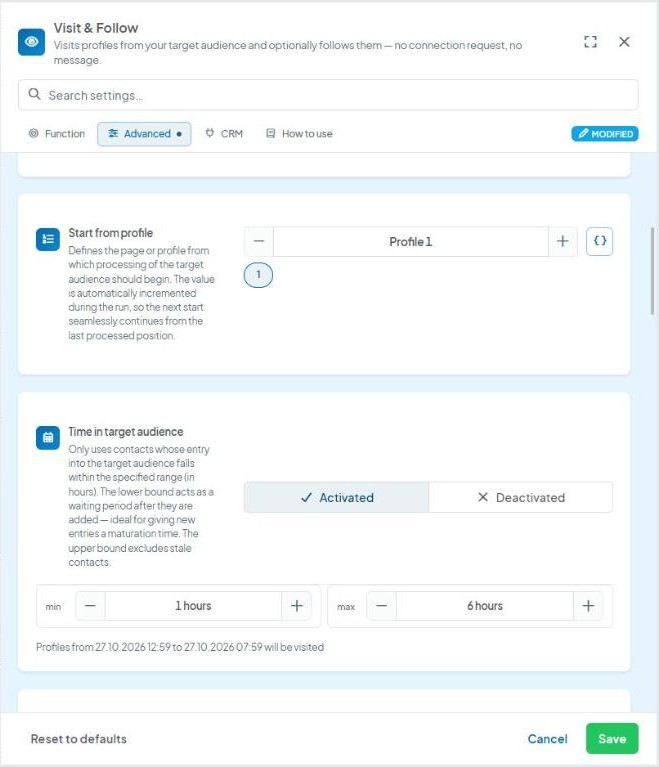
- Workflow, step 3: Invite: Select “Visit-Follow-Invite – followed” as the target audience. In the “Advanced” tab, activate “Time in target audience” here as well with the delay you want (e.g. min 24 hours) and click “Save”.
- Schedule the workflow via “Schedule Workflow” → “New execution”, ideally daily. The time in target audience controls the delay between visiting, following and connecting, so the workflow can run every day.
If you would like us to show you how, feel free to join the free daily live call.
You can find more information here: https://calendly.com/compleadly/free-q-a-live-call-en