Where is my LinkedIn QR code?
- Open the LinkedIn app on your smartphone.
- Tap the “QR code” icon in the search bar at the top of the home page.
- Open the “My Code” tab (Android: “MY CODE”). Your personal code is shown there.
- Tap “Share code” to send it (iOS) or save a copy with “Save to Photos” (iOS) or “SAVE TO GALLERY” (Android).
On desktop, LinkedIn shows no QR code of its own: you create one from your public profile URL, for example with our free email signature generator.
To scan someone else’s code, use the “Scan” tab in the same place. After scanning, you’ll go straight to their profile.
Here are both options for iOS and Android, what happens after the scan, how to get a code on your desktop, and how to follow up with contacts after a trade show.As of October 2026.The steps to click through come from the LinkedIn help article.Connect with members using a LinkedIn QR code, accessed on October 3, 2026. LinkedIn last updated this article three years ago. If your app looks different, follow what you see in the app.
Find and save your LinkedIn QR code
According to LinkedIn, every member has their own unique QR code. The steps to find it are almost the same on iOS and Android; only the labels differ.
- Open the LinkedIn app on your smartphone.
- On the home page, tap the “QR code” icon in the search bar at the top.
- Open the “My Code” tab (Android: “MY CODE”).
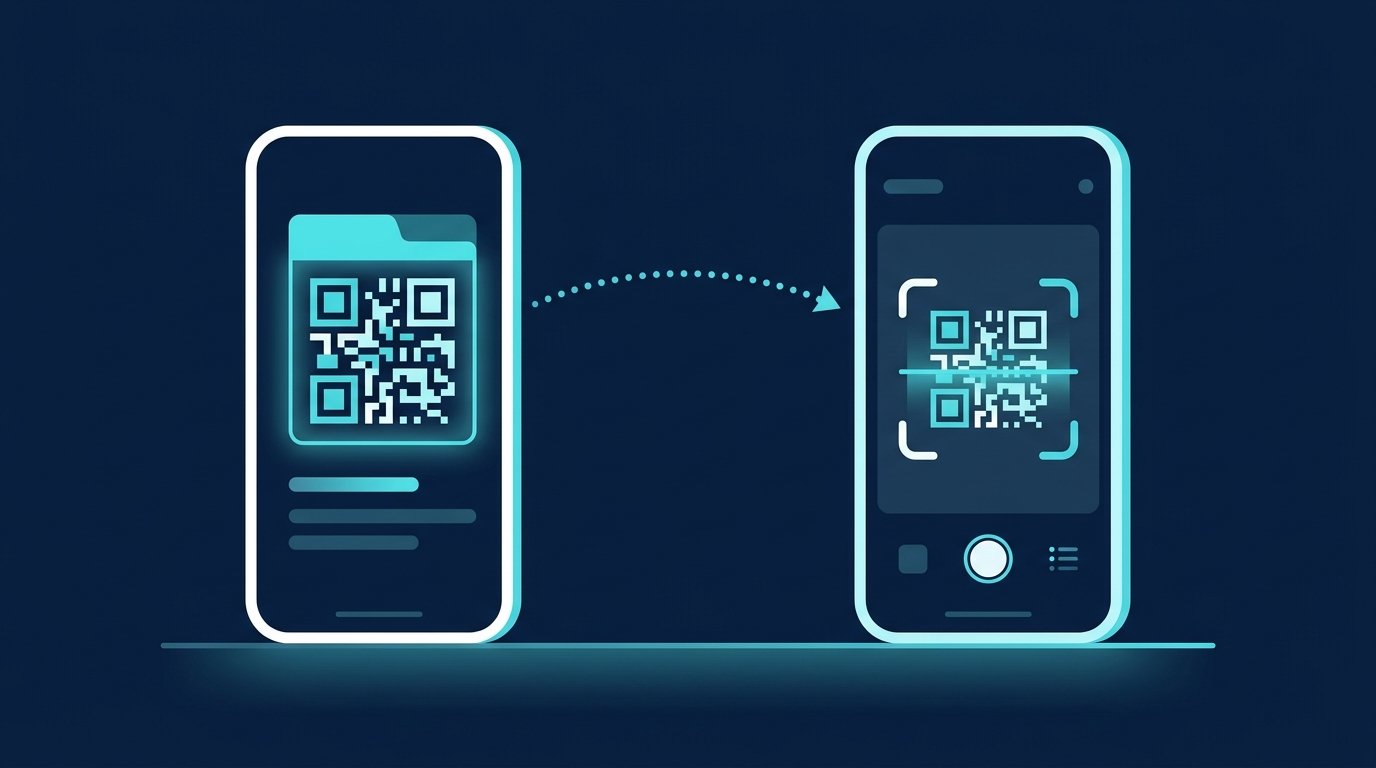
LinkedIn lists these options for saving and sharing:
- iOS: “Share code” sends your code by text message, email, or through other apps. “Save to Photos” saves a copy to your photo gallery.
- Android: “SAVE TO GALLERY” saves a copy to your gallery. The help page says sharing via message, email or other apps is planned for Android. Check your app to see whether the option is available yet.
Scan someone else’s LinkedIn QR code
- Open the LinkedIn app and tap the “QR code” icon in the search bar.
- Select the “Scan” tab (Android: “SCAN”). On Android, the first time you use it, tap “ENABLE CAMERA ACCESS” to allow access to your camera.
- Hold your smartphone directly over the QR code of the person you want to connect with.
If you received the code as an image, you don’t need a camera: on iOS, tap “Scan from Photos”; on Android, tap “ADD CODE FROM GALLERY”. That’s why it’s worth sending your own code as an image, too. The other person can then scan it at their desk.
LinkedIn QR Code Profile: What Happens After You Scan It
According to LinkedIn, scanning the code takes you directly to the person’s profile. It does not create a connection. On the profile page, you decide whether to connect, follow, or just read.
The code simply saves people from typing a name into the search bar. Whether a scan leads to a connection depends on your profile photo, headline, and About section. Before you show your code at a trade show, check what people will see after they scan it:a polished profileand aHero image in the correct sizeThey work for you while you’re already in your next conversation.
For your headline, our free LinkedIn Headline Generator can help: Enter your role, target audience, and the result you deliver, and you’ll get an AI-generated suggestion you can copy.Open tool
Where the QR code is useful in everyday life
- Trade fair and conference:Two smartphones, one scan, no mistyped names you might mishear in a noisy room.
- Business card:The code on the back replaces a URL you’d have to type in. Print it large enough and with clear contrast, or it won’t scan in low light.
- Presentation slide:A closing slide with a code and your name. Anyone who doesn’t scan it can find you through search.
- Email signature:At your computer, it’s easier to click a link than to reach for your phone. If you also print emails or show them on slides, include the code too.
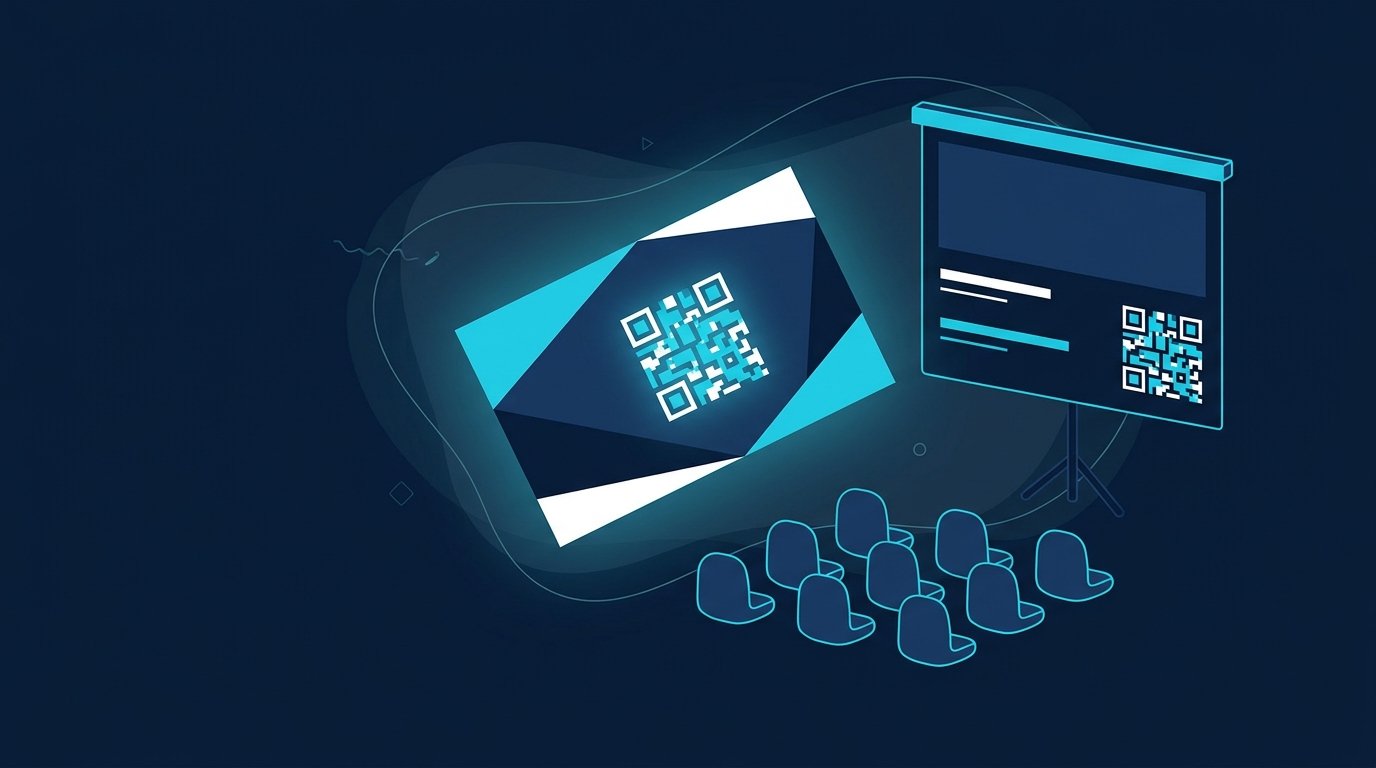
Rule of thumb: Use a QR code when people are in front of you. Use a link when they’re at a screen.
QR code at the trade show booth: Follow up with contacts afterward
Scanning is the easy part. After a day at a trade show, you have plenty of new profiles. A few days later, you can’t remember what you discussed with some of those people. A message that refers to your conversation picks up where you left off while it’s still fresh. This checklist keeps the process simple:
- Before the trade fair:Check your profile and headline, save the code using “Save to Photos”, and add it to your business card, roll-up banner or final slide.
- At the booth:scan it and send a connection request while you’re still there. The scan only opens the profile. The post explains whether to include a note.Connect with or without a message.
- Right after that:Jot down a keyword about the conversation, for example in the notes app on your phone.
- In the evening:Copy profile links, names, and keywords into an Excel spreadsheet.
- In the days that followed:Send each contact a message that refers to your conversation.
- No reply:Follow up once, politely, then close out the list.
A template for your first message after the trade show:
Hi [First name], thanks for speaking with me at [your/our] stand at [trade show] about [topic]. As promised, I’m sending you [document or link]. Would [day] work for a 15-minute call to go through [next step]?
And one for following up if you don’t get a reply:
Hi [First name], just following up on [Topic] from [Trade show]. If now isn’t a good time, let me know and I’ll get back in touch later.

How CompLeadly handles follow-ups for you
The spreadsheet from the trade show evening becomes your target audience in CompLeadly: you import it, and the desktop app works through the contacts locally on your computer using your own LinkedIn account. Contacts you’re already connected with receive a message using your text and placeholders such as their first name. Those you’re not connected with receive a connection request, followed by an initial message once they accept. Follow-ups go out at the interval you set and stop as soon as someone replies.
You start with a 10-day trial with all features. After that, you can keep using the free version with basic features and daily limits, such as 10 messages to first-degree connections, 2 connection requests and 1 follow-up per day. Multi-step workflows are available from Basic onwards. Details are available on thePricing page.
Sales, recruiting, and job search
Sales: Trade show contacts are warm leads while the conversation is still fresh. The imported list becomes your target audience, and the acceptance rate for each target audience later shows you which trade show brought in new contacts.
Recruiting: At career fairs, recruiters collect profiles of graduates they want to contact later. In CompLeadly, you can set up a sequence for each role from Basic onwards: profile visit, connection request with an initial message, and follow-ups. See how recruiters use this day to day in our recruiting use case.
Applicants and job seekers: Scan the recruiter's code at the stand and connect right away. Then send a message that refers to your conversation. You can also use a search for recruiters and hiring managers at your preferred employer as a target audience in CompLeadly. Profile visits, connection requests with a note, initial messages, and follow-ups are available in the free version, subject to daily limits. See how to prepare your profile in LinkedIn Open to Work.
Is the LinkedIn QR code available on desktop?
The LinkedIn help article on QR codes only covers the mobile app; it does not describe a desktop option. On a computer, you can create the code yourself from your public profile URL. See how to find that URL in Find LinkedIn URL.
Our free email signature generator creates a LinkedIn QR code from your profile URL directly in your browser and embeds it in your signature. Your URL is not sent to a server, and you do not need to sign up. Open tool
Static or dynamic QR code?
Many QR code generators promote dynamic codes. These do not point to your profile URL but to a redirect run by the provider. The provider can track when and how often the code is scanned, and the code only works as long as the provider maintains the redirect. A static code contains the profile URL itself. It needs no intermediary, collects no scan data, and works as long as your profile exists. For a LinkedIn profile, the static code is the more privacy-conscious choice.
Before: Set a concise profile URL
If you create the code from your profile URL, it is worth tidying up the address. According to LinkedIn Help, here is how to do it on desktop:
- Click the “Sie” icon at the top of the homepage.
- Click “Profil anzeigen”.
- Click the “Edit” icon next to “Public profile & URL” on the right.
- Under “Edit your custom URL”, click “Edit” next to the URL, enter the new final part, and click “Save”.
The customisable part must be 3 to 100 characters long and should not contain spaces, symbols, special characters, or the word “LinkedIn”. Capitalisation does not matter. LinkedIn assigns custom URLs on a first-come, first-served basis, and you can only have one at a time. Source: LinkedIn Help: Manage your public profile URL, accessed October 3, 2026.
Frequently asked questions: LinkedIn QR code
Where can I find my LinkedIn QR code?
In the LinkedIn mobile app, tap the “QR code” icon in the search bar and open the “My code” tab (Android: “MY CODE”). You will see your personal code there and can save or share it.
How do I scan a LinkedIn QR code?
In the app, tap the “QR code” icon in the search bar, select the “Scan” tab, and hold your smartphone over the other person's code. On Android, confirm “ENABLE CAMERA ACCESS” the first time.
Can I scan a QR code that was sent to me as an image?
Yes. On iOS, use “Scan from photos”; on Android, use “ADD CODE FROM GALLERY”. You do not need a second device or a camera.
How do I get my LinkedIn QR code on desktop?
The LinkedIn help article only covers the mobile app, so there is no built-in desktop code. On a computer, you create a static QR code from your public profile URL, for example with our free email signature generator, which creates the code directly in your browser.
What happens when someone scans my QR code?
According to LinkedIn, the person lands on your profile. That does not connect you yet. They still need to send a connection request themselves, just as they would after a normal search.
How do I follow up with trade show contacts?
Connect while you are still at the stand, make a note of something you discussed, and send a message referring to it in the following days. If you get no reply, follow up once. With CompLeadly, you can import the profile links as an Excel list and have the desktop app send the message and follow-up.