To see your pending connections on LinkedIn, go to “My Network”, open your invitations and switch to the “Sent” tab. Every request still waiting for an answer has a “Withdraw” button next to it. The recipient isn't notified when you withdraw, but you can't invite the same person again for up to three weeks, and LinkedIn doesn't let you withdraw in bulk. As of October 2026.
This guide shows where the list lives on desktop and in the app, what LinkedIn says about the waiting period, and a monthly cleanup routine you can run on a fixed date. How many requests LinkedIn allows in the first place is covered in LinkedIn connections limit. This article is about the clicks.
Where to find your sent LinkedIn invites
LinkedIn keeps sent and received invitations in the same place. The labels below are the ones LinkedIn uses on its help page “Withdraw an invitation”.
On desktop
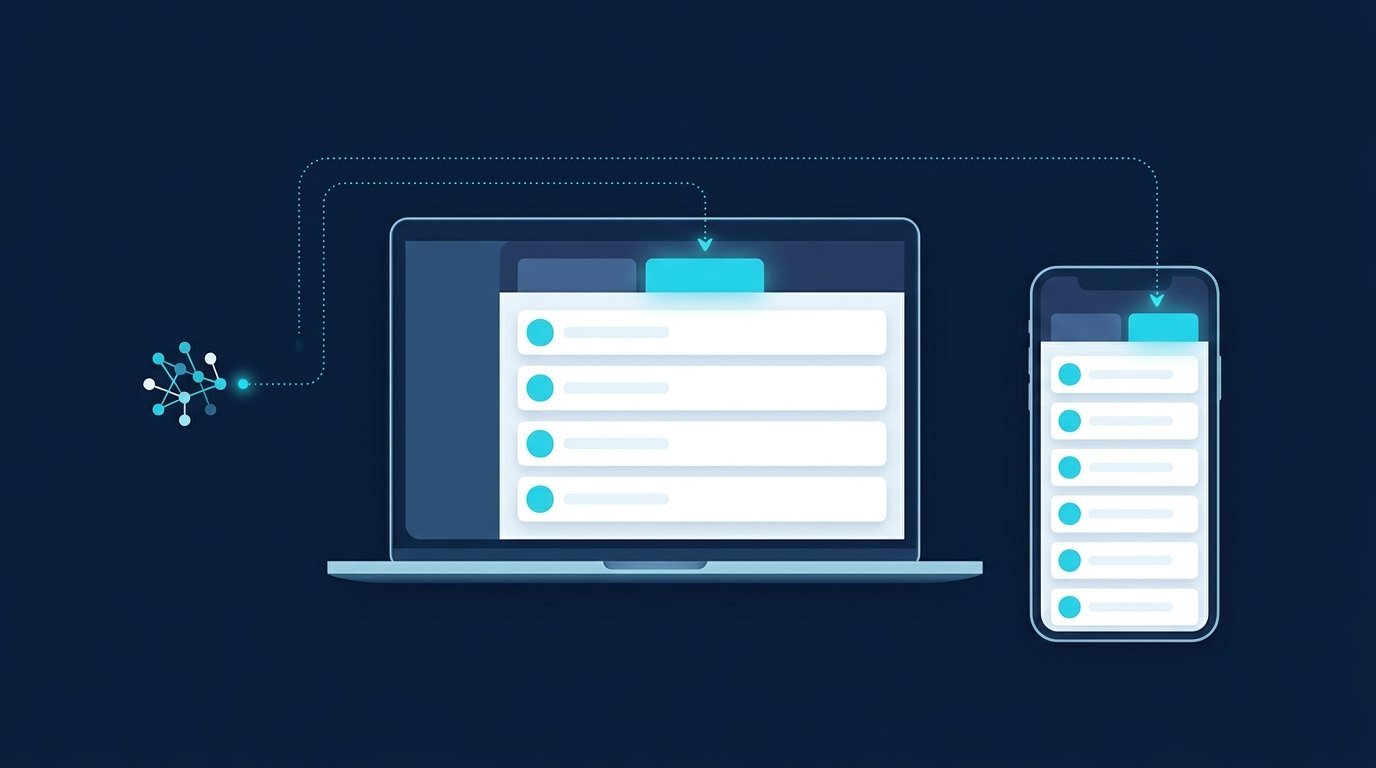
- Click “My Network” at the top of your LinkedIn homepage.
- In the Invitations section: if you have pending invitations you received, click “Show all”. If you don't, click “Manage” next to “No pending invitations”.
- Under “Manage invitations”, click the “Sent” tab.
- Click “Withdraw” next to the request you want to remove and confirm with “Withdraw” in the pop-up.
In the LinkedIn app
- Tap “My Network” in the navigation bar.
- Tap “Invitations” to see everything you've received or sent.
- Tap the “Sent” tab.
- Tap “Withdraw” next to the request and confirm with “Withdraw”.
Source: LinkedIn Help: Withdraw an invitation, accessed October 3, 2026. The list only shows invitations that are still waiting for a response. Accepted requests disappear from it. If you want to undo one of those, the same page says your only option is to remove the person as a connection.
What happens when you withdraw a LinkedIn invitation
The help page is short and clear. Know these five points before you click:
- No notification. “The recipient will not be notified when you withdraw the invitation.”
- No more reminders. Withdrawing stops the reminder emails LinkedIn sends to the recipient.
- No undo. Withdrawn invitations can't be restored.
- No bulk action. “You can't bulk withdraw invitations.” Each request is its own click.
- Pages and events too. Invitations to a LinkedIn Page or Event are withdrawn the same way, as long as they haven't been accepted.
If you leave a request alone, it eventually takes care of itself: “Invitations expire after six months.” Before that, LinkedIn sends up to two reminders. Expired invitations no longer count as pending, and you can send a new one. Source: LinkedIn Help: LinkedIn connections and invitations FAQ, accessed October 3, 2026. Six months is far too long to plan around, which is why active cleanup pays off.
The waiting period of up to three weeks
The help page says it word for word: “You won't be able to send a new invitation to the same member for up to three weeks.” The waiting period applies per person. You can keep inviting everyone else.
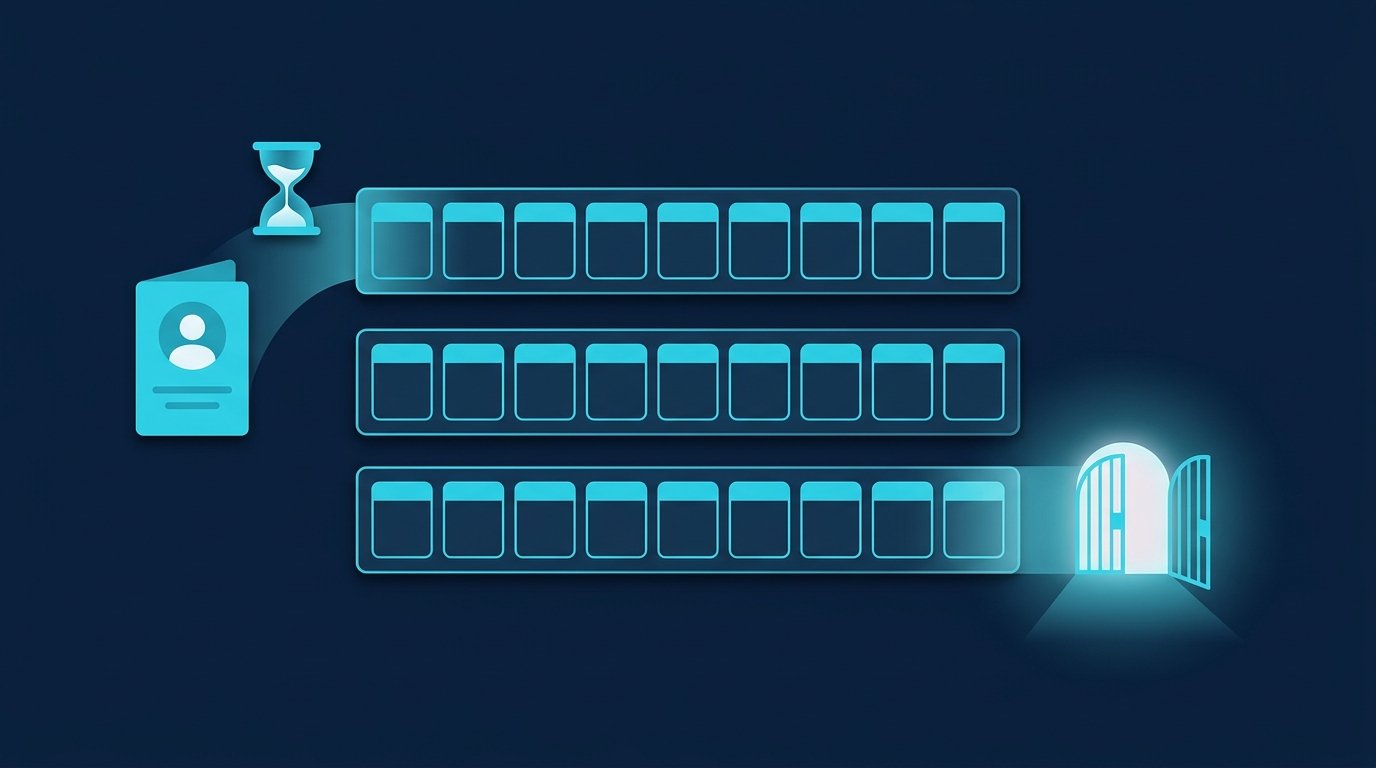
In practice: only withdraw what you're actually done with. Don't pull a request to your most important prospect after three days just to resend it with a better note. You'd wait up to three weeks. Write the note right the first time. Templates are in LinkedIn connection message templates.
How many pending connections are too many?
LinkedIn doesn't give a number. Its help page on invitation limits does list two reasons for restrictions, and one of them is exactly this list: many of your invitations “have been ignored, left pending, or marked as spam by the recipients.” For the case of too many outstanding invitations, LinkedIn says: “Wait for up to one month before attempting to send another invitation.” Source: LinkedIn Help: Types of restrictions for sending invitations, accessed October 3, 2026.
According to LinkedIn, withdrawing doesn't lift a pause that's already running. Cleanup is prevention, not repair. Instead of a fixed ceiling, use a ratio: how many requests do you send per week, and how many of them are still open a month later? If the pending list grows faster than your accepted connections, something about your audience or your note is off.
Situation | What LinkedIn says | What you do |
|---|---|---|
Request pending for weeks, person matters to you | After withdrawing, no new invitation to them for up to three weeks | Leave it and find another way in, such as a mutual connection |
Request to someone with no real connection to you | Ignored and pending invitations are a reason for restrictions | Withdraw |
Request with a typo or the wrong name | Withdrawn invitations can't be restored | Withdraw and accept the waiting period |
You've already hit the invitation limit | Withdrawing doesn't lift the current pause | Wait, then clean up the list |
Request older than six months | Invitations expire after six months | Nothing, it's no longer pending |
For an estimate of your weekly budget that also factors in your pending invitations, try our free LinkedIn Limits Calculator. It works with experience-based values, not LinkedIn figures, and runs in your browser.
Export or message your pending requests
LinkedIn's help pages don't describe an export for sent invitations. If you want a list to follow up on later, copy it out before you withdraw: name, profile link, request date, reason for reaching out.
Messaging pending requests is limited. Free messages go to 1st-degree connections, and a pending request doesn't make someone one. If your request included a note, the recipient can reply without accepting the invitation. For everyone else, there's InMail or a shared group. Sources: LinkedIn Help: Send messages on LinkedIn and LinkedIn Help: Personalize invitations to connect, accessed October 3, 2026.
Your monthly cleanup routine
A fixed date at the start of each month is enough. The order matters, because withdrawing is final.

- Count. Open the “Sent” tab and note how many requests are pending. Compare with last month.
- Sort. Split the list into three groups: important and recent, important and old, no real connection.
- Save. Write down name and profile link of the important old requests before touching anything.
- Withdraw. Withdraw the requests with no real connection.
- Pick a new route. For the important old requests, find another way in: a mutual connection, a comment on one of their posts, InMail.
- Learn. Check which audience or which note produced the most pending requests, and change exactly that.
A step-by-step guide for doing this in CompLeadly is in the knowledge base article How-To: Withdrawing Pending Invitations.
Sales, recruiting, job search: who cleans up how
Sales
In sales the list grows fastest, because you reach out to many people who don't know you. That's where the routine pays off most. In CompLeadly you withdraw pending requests automatically once they reach a minimum age in days. If you like, only the ones you sent with CompLeadly, so your manual requests stay untouched.
Recruiting
Several open roles share the same invitation list. Withdraw requests and the candidates are otherwise gone. CompLeadly can save profiles with a withdrawn request to a target audience, so you can approach them later for a different role. Recruiter Lite searches, pipelines and saved searches also work as sources, with your own Recruiter license. More on the CompLeadly for recruiters page.
Job seekers
As a job seeker you send few, targeted requests to recruiters and hiring managers. Withdraw sparingly here: the waiting period hits exactly the people who matter to you. Withdrawing pending requests is part of the free version of CompLeadly, with up to 15 per day. How to get your profile ready is covered in LinkedIn Open to Work.
Withdraw pending requests automatically with CompLeadly
CompLeadly runs as a desktop app on your own computer. The “Withdraw Connection Requests” feature works through the list the way you would by hand, without you having to remember it:
- Minimum request age: You set how old a request must be, in days. The default is 5 days, and the in-app help text recommends 7.
- Only your own requests: With this option on, manually sent requests stay untouched. It's off by default.
- Daily volume: Up to 15 per day in the free version, no cap from the tool from Basic upward.
- Next steps: Withdrawn profiles can go to a target audience or a team blocklist, and the list can be exported.
You start with a free 10-day trial with all features. After that, your account switches automatically to the free version with basic features and a daily limit. Plans and prices are on the pricing page.
FAQ: Pending connections on LinkedIn
How do I see pending connections on LinkedIn?
Click “My Network”, then “Show all” or “Manage” in the Invitations section, and open the “Sent” tab under “Manage invitations”. In the app, tap “My Network”, then “Invitations” and “Sent”. That list shows every request still waiting for an answer.
Does someone know if I withdraw my LinkedIn invitation?
No. According to LinkedIn Help, the recipient isn't notified. Withdrawing also stops the reminder emails LinkedIn would otherwise send them.
When can I invite the same person again?
LinkedIn says you won't be able to send a new invitation to the same member for up to three weeks. You can keep inviting everyone else during that time.
Can I withdraw all LinkedIn invites sent at once?
Not in LinkedIn itself. The help page says explicitly that you can't bulk withdraw invitations, so each request is a separate click. CompLeadly withdraws pending requests automatically once they reach a minimum age, up to 15 per day in the free version.
Do pending LinkedIn invitations expire?
Yes, after six months. Before that, LinkedIn sends up to two reminders. Expired invitations no longer count as pending, and you can send a new one.
Does withdrawing lift an invitation limit?
No. According to LinkedIn, withdrawing doesn't lift a pause that's already running. It's still worth doing as prevention, because LinkedIn names many pending invitations as a reason for restrictions.