

Finding the event invitation feature in CompLeadly
To use the “Invite to Event” feature, follow these steps:
- In CompLeadly, open your workflow under “Workflows”.
- Click “Add Function” at the top.
- Search for “Invite to Event” and add the feature using the plus button. It then appears as a separate step in your workflow.
Creating an event on LinkedIn
To create an event on LinkedIn, follow these steps:
- Click “Home” to go to your feed.
- Start a new post.
- Choose the “Event” option from the menu.
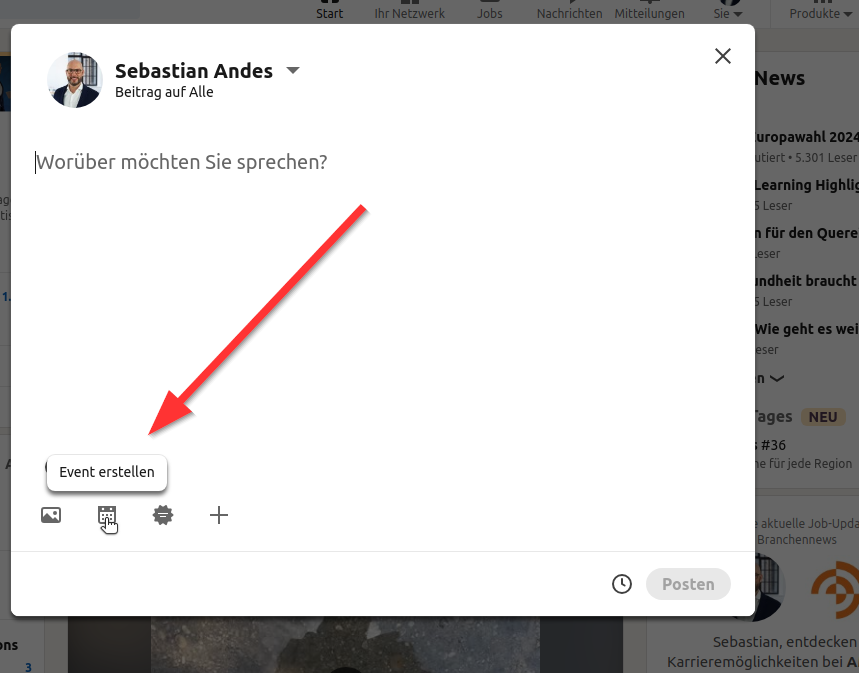
- Enter the required information for your event and create it.
Copying and pasting the invitation link
Once the event is created, you can copy the invitation link and paste it into the “Invite to Event” feature:
- Copy the link to your event from your browser's address bar.
- In your workflow, open the settings of the “Invite to Event” step via “Edit”.
- On the “Function” tab, paste the copied link under “Select LinkedIn event” into the “LinkedIn event link” field.
- Optional: Choose a target audience under “Use target audience”. Then only profiles from this target audience are invited – otherwise CompLeadly uses LinkedIn's suggestions.
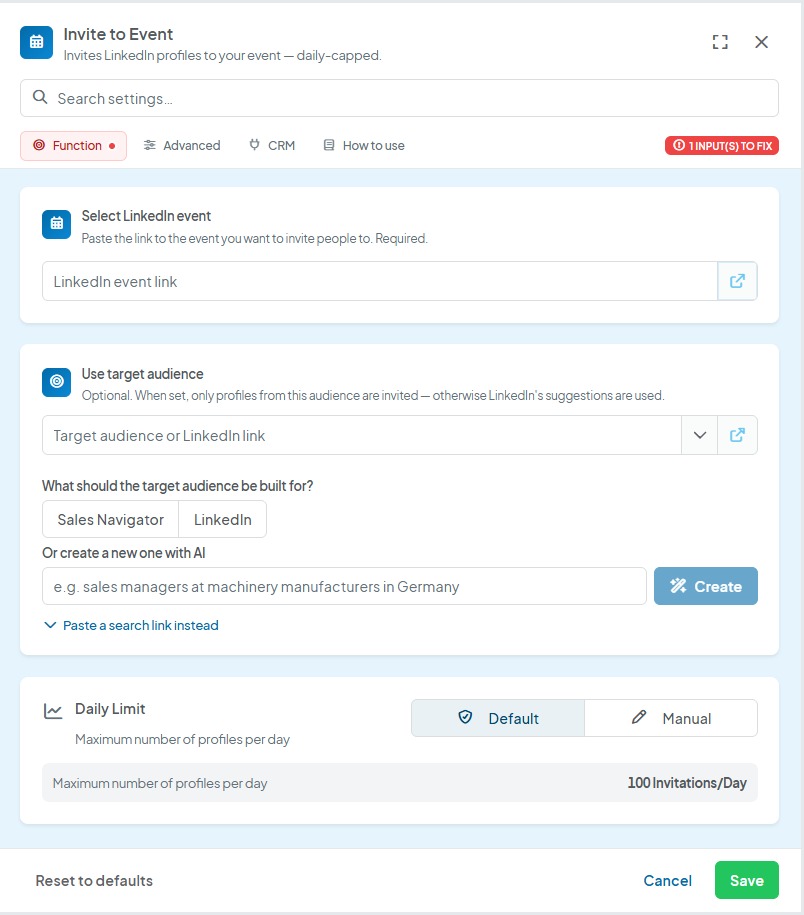
Settings for the invitation
Under “Daily Limit”, you set how many contacts are invited per day: “Default” uses 100 invitations/day, with “Manual” you set the value yourself.
- We recommend not inviting more than 100 contacts per day.
- It is best to use the calculation placeholders (guide: Tutorial: Calculation Placeholders).
Support and questions
This feature helps you effectively invite your contacts to your events. If you have any questions about it, you can always press the support button.
By following these steps, you can ensure your events are well-attended and you utilize your network optimally. Try it out and invite your contacts to your next event! Do you already have an event planned where you would like to use this feature?