
To get introduced through a mutual connection on LinkedIn, find the connections you share with the person you want to reach, message the one who knows them best and ask for an introduction, and include a short blurb they can forward as is. If they agree, they introduce you, or you mention them in your connection request with their permission.
It sounds like a detour. It's the shortest route to people who ignore cold requests. Below: how to find mutual connections, seven templates to copy, and what LinkedIn itself offers for introductions. As of October 2026.
Why an introduction beats a cold message
A cold request has to build trust in a single sentence. An introduction arrives with it: someone the person already knows says “you two should talk.” The question “who is this and what do they want?” gets answered by the mutual connection before you write a word.

LinkedIn thinks the same way. In its help on personalized invitations, it suggests mentioning how you found the person or what you have in common. A mutual connection who knows you both is one of the strongest things two people can have in common. Source: LinkedIn Help: Personalize invitations to connect, accessed October 3, 2026.
The catch: introductions don't scale. You're asking for a favor, and you can't do that a hundred times a week. Save this route for the people where one conversation is worth a lot: the decision-maker at your dream account, the one candidate for the hard-to-fill role, the team lead at the company you want to work for.
How to find mutual connections on LinkedIn
First you need to know who sits between you and the person. LinkedIn shows this through degrees of connection: 2nd-degree connections are “people who are connected to your 1st-degree connections.” That 1st-degree connection is your potential introducer. With 3rd-degree connections you'd need two hops, which is usually too far for an introduction. Source: LinkedIn Help: Your network and degrees of connection, accessed October 3, 2026. What the degrees mean beyond that is explained in LinkedIn follow vs. connect.

Route 1: search
According to LinkedIn, you can view shared connections from the “People” tab of the search results page. People search also has a “Connections of” filter under “All filters”. It shows you who one of your connections knows, so you can check whether your target is among them. Sources: LinkedIn Help: View your connection's connections and LinkedIn Help: Search for people on LinkedIn, accessed October 3, 2026.
Route 2: a connection's profile
Open a 1st-degree connection's list from their profile by clicking “[Number] connections” below their profile picture. That doesn't always work: any member can hide their connections list, and then the option is missing. Shared connections stay visible, though, according to LinkedIn: “all members who have connections in common with you can see those shared connections.” Source: LinkedIn Help: What people can see on your profile, accessed October 3, 2026.
Picking the right mutual connection
Not every mutual connection actually knows the person. Plenty of them accepted a request once and never spoke again. Before you ask, check three things: did the two of them work together at the same company at the same time? Do they comment on each other's posts? And do you know the introducer well enough to ask for a favor? If the last answer is no, find another way.
How to ask for an introduction: 4 templates
The rule for all of them: make it easy for the introducer. They should be able to decide in a minute and not have to write anything themselves. So every request includes a ready-made blurb they can forward. And a clear way to say no without it getting awkward.
Template 1: Sales introduction request
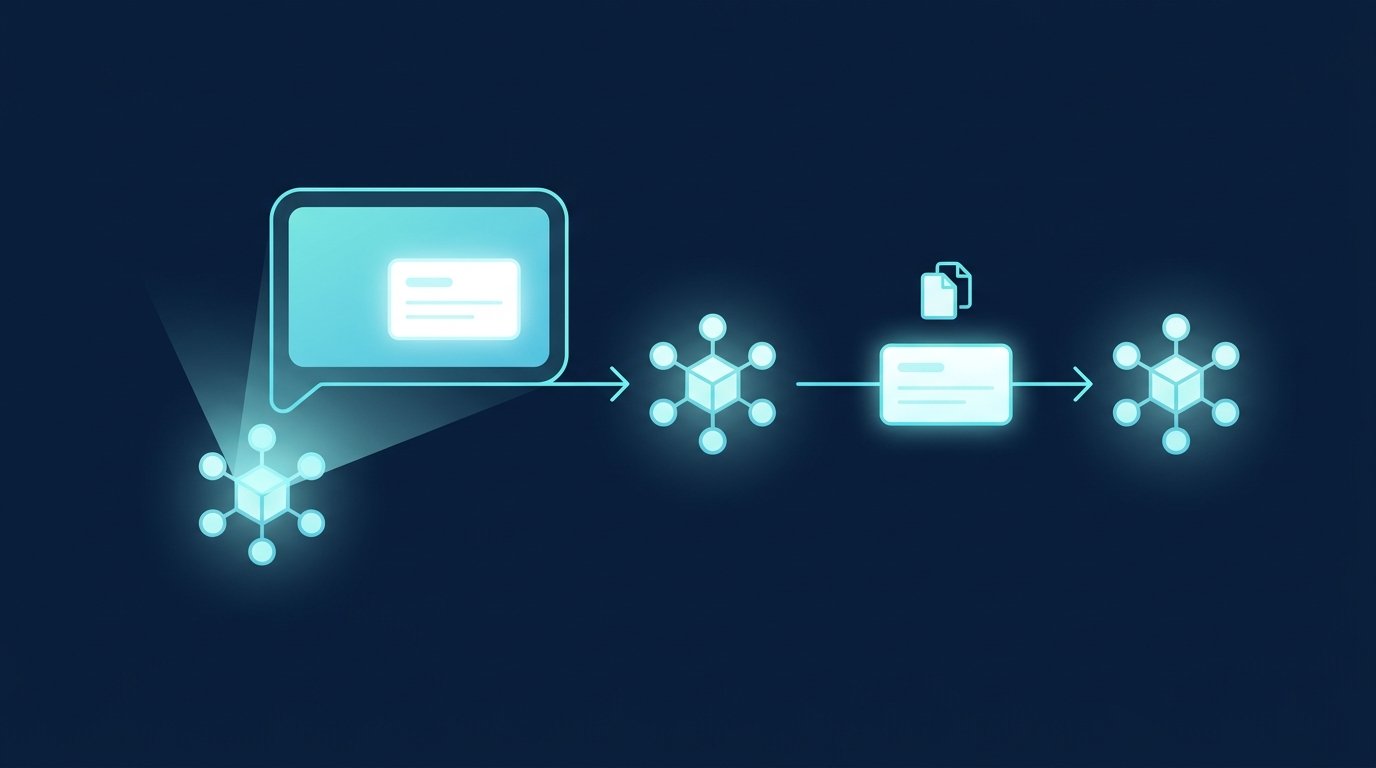
Hi [First name], I noticed you're connected with [Target name] at [Company]. Do you know them well enough for a quick introduction? Context: we help [industry] with [topic], and [Company] looks like a good fit. If so, here's a short note you can simply forward. If not, no problem at all.
Blurb to forward
[Your name] works on [topic] at [Company] and helped [similar company] achieve [specific result]. I think a short conversation would be worthwhile for both of you. Mind if I connect you?
Template 2: Recruiting introduction request
Hi [First name], you worked with [Candidate name] at [Company]. We're hiring a [Role] for [Team], and their profile is a great match. Would you ask them whether a short, no-pressure chat is okay? Happy to send you the job description to forward.
Template 3: Job search introduction request
Hi [First name], I'm applying for [Role] at [Company] and see that you know [Name] from the [Team] team. Could you introduce me? I'm hoping for ten minutes to understand how the team works. My resume and two lines about me are below.
Template 4: Friendly nudge after a week
Hi [First name], quick follow-up on my request about [Name]. If the timing's bad or you don't know them that well after all, just let me know and I'll find another way.
How to introduce someone on LinkedIn: 3 templates
Sooner or later someone asks you. LinkedIn has a dedicated feature for the introduction itself: on a member's profile, click “More” and select “Share Profile” to send it to a connection. LinkedIn describes this explicitly as a way “to introduce any LinkedIn member to someone in your network who may benefit from knowing them.” In the app, the help page calls the option “Share via private message”. Source: LinkedIn Help: Share a profile with connections and coworkers, accessed October 3, 2026.
Better than two separate messages is one message to both people explaining briefly why they should meet. Ask both sides first.
Template 5: Checking with the target first
Hi [First name], [Name] from my network works on [topic] and would like to exchange notes with you. I think it makes sense because [reason]. Okay if I connect you two?
Template 6: The introduction message to both
Hi both, as discussed, here's the introduction. [Name A] does [work] at [Company], [Name B] is currently working on [topic]. You both deal with [common ground], so a conversation is worth it. I'll let you take it from here.
Template 7: Polite decline
Hi [First name], thanks for thinking of me. Honestly, I only know [Name] in passing, so I'd rather not reach out to them. Your best bet is probably [other route].
Mention the mutual connection in your connection request
Sometimes mentioning the mutual connection in your connection note is enough, without asking for a full introduction. That only works if the connection agrees and the person actually knows them. Using a loose acquaintance's name as a door opener falls apart at the first follow-up question.
The note is tight on a free account: according to the current help page, you can add a personalized message to only three connection requests per month, up to 200 characters each. Premium members can add a note to every request. Source: LinkedIn Help: Personalize invitations to connect, accessed October 3, 2026. More request notes are in LinkedIn connection message templates.
Note with a mutual connection (under 200 characters)
Hi [First name], [Name] suggested we talk about [topic]. Looking forward to connecting. Best, [My first name]
Which template fits?
Situation | Template |
|---|---|
You want to reach a decision-maker at a target account | Template 1 plus the blurb to forward |
You're looking for a candidate who ignores InMails | Template 2 |
You're applying and want to talk to someone on the team | Template 3 |
The introducer hasn't replied for a week | Template 4 |
Someone asks you for an introduction and it makes sense | Template 5, then template 6 |
You barely know the target person | Template 7 |
The connection agreed and you want to connect directly | Note with a mutual connection |
Introductions in Sales Navigator: TeamLink and Ask for intro
Sales Navigator has two features built for introductions. TeamLink shows you who at your company is connected to a lead, so you can ask for a warm introduction. LinkedIn says TeamLink is only available on the Advanced and Advanced Plus plans. “Ask for intro” uses AI to draft an introduction request to a mutual or TeamLink connection, which you review and edit before sending. It's also listed for Advanced and Advanced Plus, and LinkedIn notes that AI output can be factually wrong. Sources: Sales Navigator Help: TeamLink and Sales Navigator Help: Ask for introduction using AI, accessed October 3, 2026. How to set up Sales Navigator overall is covered in How to use LinkedIn Sales Navigator.
What not to do
- Name-drop without permission. Mention a connection who doesn't know about it and you lose both people.
- Make the introducer do the writing. Without a ready-made blurb, your request sits there. Not out of unwillingness, but because it's work.
- Ask the same person too often. A connection asked to introduce you three times a month will eventually stop answering.
- Keep the outcome to yourself. Tell the introducer what came of the conversation. That's why they'll do it again next time.
- Pitch right away. The first conversation after an introduction is getting to know each other. Sending an offer immediately damages the introducer's reputation.
Sales, recruiting, job search: where CompLeadly helps
You write the introduction request yourself. That's relationship work, and it should stay that way. CompLeadly takes care of the work around it, so you have time for these conversations. CompLeadly runs as a desktop app on your own computer.
Sales
A LinkedIn people search or Sales Navigator search becomes a target audience in CompLeadly. Profile visit, connection request with or without a note, first message after acceptance and follow-ups run as steps. Follow-ups stop as soon as someone replies. Placeholders such as first name, company and position are available for the note. Only use a mutual connection's name where they've agreed.
Recruiting
CompLeadly uses Recruiter Lite searches, pipelines and saved searches as target audiences, with your own Recruiter license. Candidates you reach through an introduction get a personal message, everyone else runs through one workflow per role. More on the CompLeadly for recruiters page.
Job seekers
A people search for recruiters and team leads at the company you want to join becomes a target audience. Profile visit, connection request with a note, first message and follow-up already work in the free version, with daily limits such as 2 connection requests and 25 profile visits. For the one person who really counts, use template 3. How to get your profile ready is covered in LinkedIn Open to Work.
You start with a free 10-day trial with all features. After that, your account switches automatically to the free version with basic features and a daily limit. More on connection degrees in CompLeadly is in the knowledge base article Your network and connection degrees.
FAQ: LinkedIn mutual connection introductions
How do I find mutual connections on LinkedIn?
According to LinkedIn, you can view shared connections from the “People” tab of the search results page. The “Connections of” filter in people search helps too. Open a 1st-degree connection's list from their profile via “[Number] connections”, unless they've hidden it.
What is a mutual connection on LinkedIn?
A member that both you and another person are directly connected to. For you, that other person is then a 2nd-degree connection. The mutual connection is the natural introducer.
How do I introduce someone on LinkedIn?
Ask both sides first. Then use “More” and “Share Profile” to send one person's profile to the other, or write one message to both explaining in two sentences why they should meet.
How do I ask for a LinkedIn introduction without being pushy?
Only ask connections you know well, give the reason in one sentence and include a ready-made blurb to forward. Give the introducer an explicit way to say no, and follow up at most once.
Can I mention a mutual connection in my connection request?
Yes, if they agree and the person really knows them. On a free account, LinkedIn allows only three notes per month with up to 200 characters. Name the connection and the topic, there's no room for more.
What is Ask for intro in Sales Navigator?
An AI feature that drafts an introduction request to a mutual or TeamLink connection. You review and edit the draft before sending. According to LinkedIn, it's available on the Advanced and Advanced Plus plans.