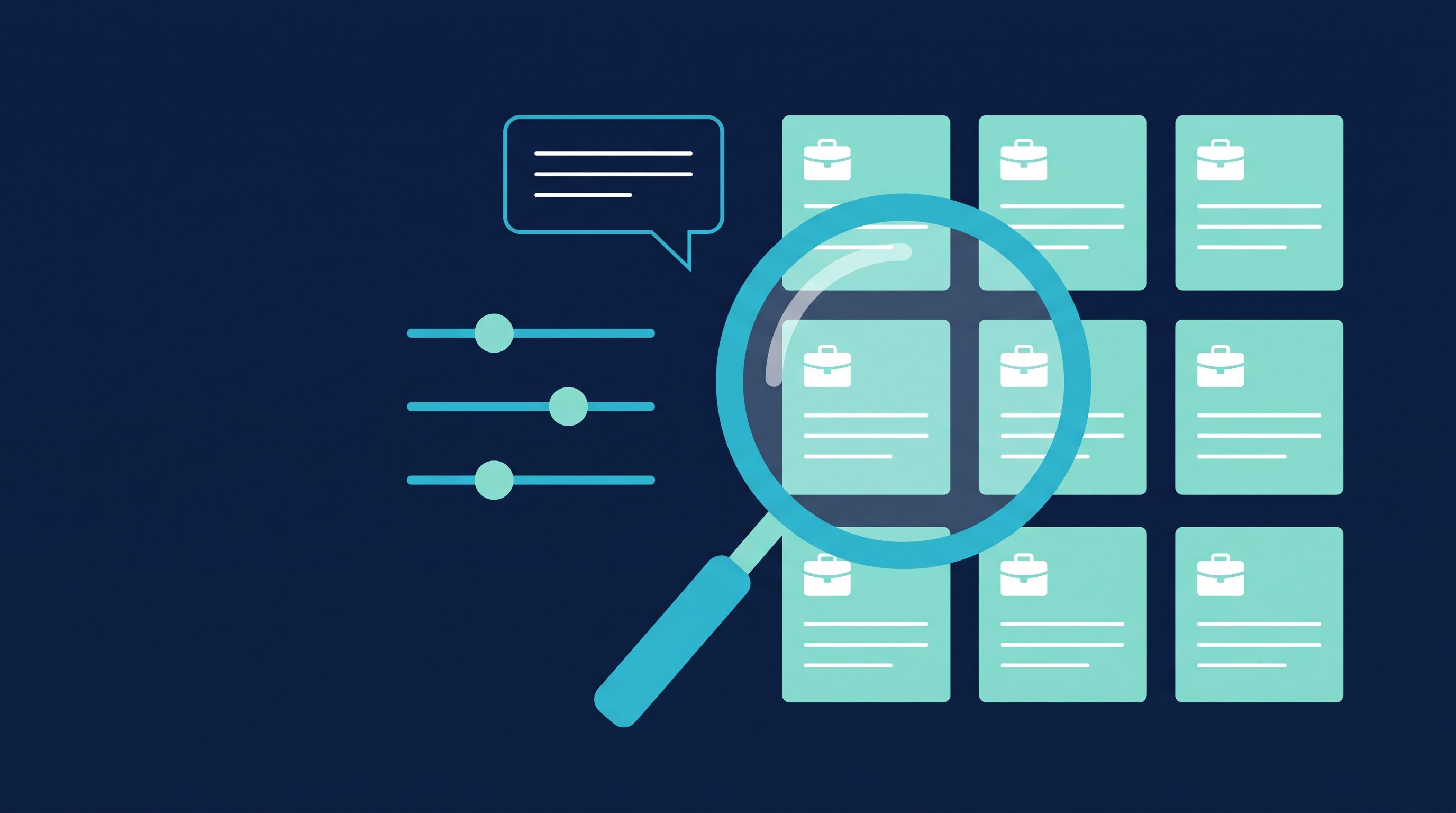
In short: Your saved jobs on LinkedIn live in the job tracker. On desktop, click Jobs at the top, then Job tracker in the left rail and the Saved tab. In the app, tap Jobs and then Job tracker. The More icon next to a job lets you apply, change its stage, archive it or unsave it.
Last updated: November 2026. All click paths come from LinkedIn's help center and may change. For general mistakes people make when job hunting on LinkedIn, see 10 common LinkedIn mistakes when job hunting.
How to save a job on LinkedIn
A saved job is your shortlist. You park a role that interests you and decide later whether to apply. That's useful when you want to compare postings, update your resume first or talk to someone at the company before you apply.
According to LinkedIn's help center, you can save a job at any time with the Save button on the job details page. It works the same on desktop and in the app. A simple routine: save a job as soon as it catches your eye and add a note in the tracker about why. After a week with ten postings, you won't remember what drew you to each one otherwise.
Don't save everything that sort of fits. You won't work through a shortlist with 80 entries. If you use the "Date posted" and "Under 10 applicants" filters while browsing, mostly fresh postings end up on your list, the ones where you're early.
Saving a job is not the same as Open to Work. Open to Work tells recruiters you're open to offers. Saved jobs are your private list. How the signal works is covered in Open to Work on LinkedIn.
Where to find saved jobs on desktop and in the app
Saved jobs sit in the job tracker, on their own tab. Here are the paths from LinkedIn's help center:
Step | Desktop | App |
|---|---|---|
1 | Click Jobs at the top of your homepage | Tap the Jobs icon |
2 | Click Job tracker in the left rail | Tap Job tracker |
3 | Open the Saved tab | Open the Saved tab |
4 | Click the More icon next to the job and pick an action | Tap the More icon next to the job and pick an action |

Jobs you've already applied to are in the same tracker under the Applied tab. On desktop, click a job there to see the job details and the resume you used if you applied on LinkedIn. In the app, the job tracker sits under the search bar. Pick Applied from the dropdown and tap Update.
Managing saved jobs: stages, notes and archive
The job tracker is more than a list. According to LinkedIn, it moves each job through five stages: saved, in progress, applied, interview and archive. The More icon next to a saved job gives you four actions:
Action | What it does |
|---|---|
Apply | Opens the application for the job |
Change stage | Moves the job to another stage, such as in progress |
Archive | Moves the job to the Archived list |
Unsave | Removes the job from your Saved list |
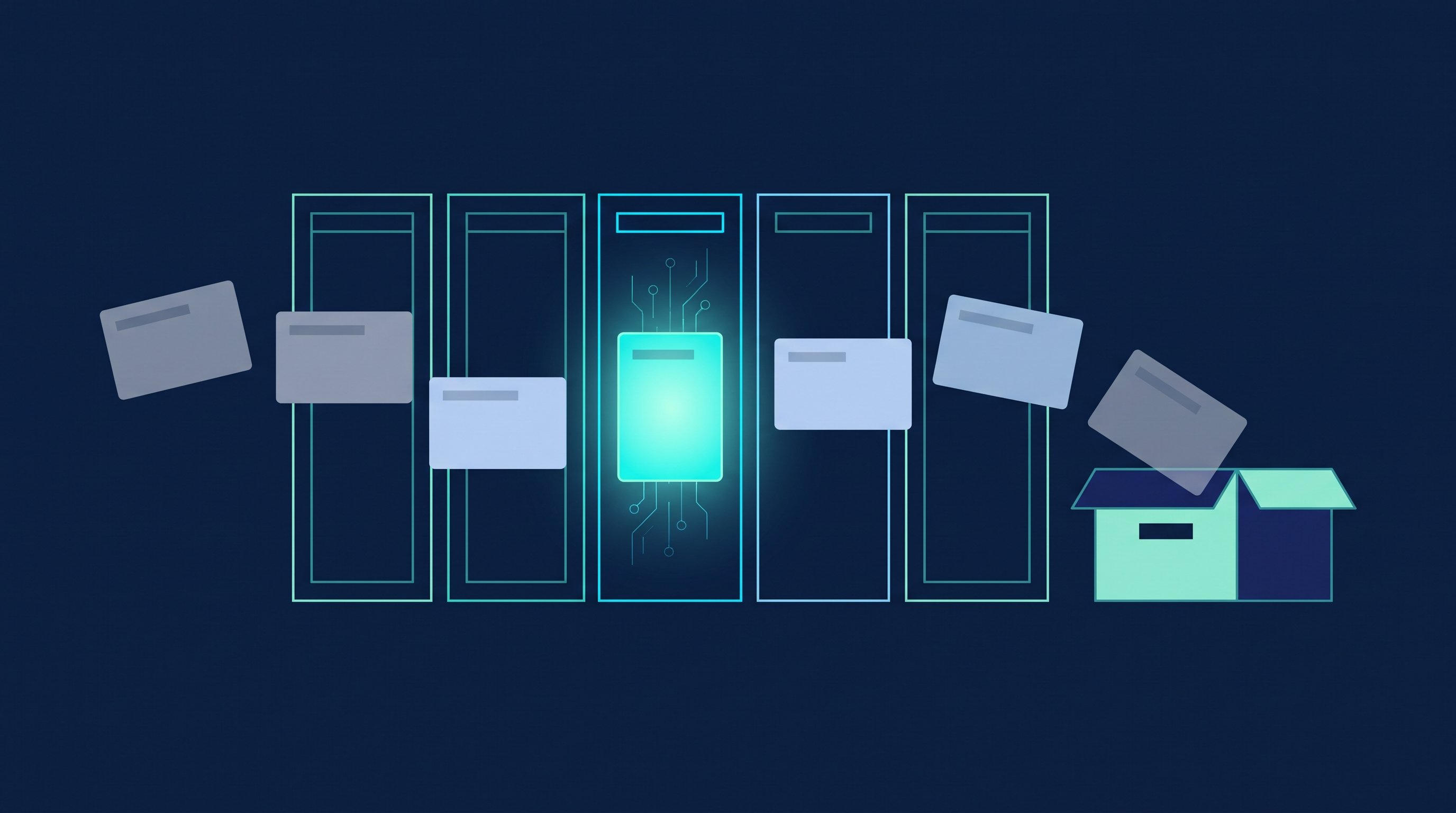
LinkedIn says you can also add notes to each job, filter the list by date posted and see network connections you can reach out to. Notes are what turn a shortlist into a working tool: contact person, salary range from the call, application date, next step.
How stages update automatically
LinkedIn handles two kinds of jobs differently. For Easy Apply jobs, a role moves from saved through in progress to applied on its own once you start or submit the application. You move it to interview yourself with Change stage. For jobs where you apply on the company's website, you have to save the job first and then move it through the stages yourself. LinkedIn says the tracker will prompt you, but you can update your progress at any time.
Common snags and how to fix them
Most questions about saved jobs have a simple cause that LinkedIn's help center explains.
What happens | Cause, per LinkedIn's help center | What to do |
|---|---|---|
An older saved job is gone | Jobs are removed from the tracker automatically after one year | Keep important roles outside LinkedIn as well, with link and contact |
An applied job can't go back to saved | After you apply, earlier stages like saved and in progress are no longer available | Track status in notes and continue from applied |
An application on the company site doesn't show under applied | The tracker only follows external applications if you saved the job first | Save the job and set it to applied yourself |
The list is full of old roles | There's currently no way to unsave multiple jobs at once | Remove them one by one or archive them |
You can't find the list in the app | Saved jobs live in the job tracker, which you reach through the Jobs icon | Tap Jobs, then Job tracker and open the Saved tab |
You can't save any more jobs | LinkedIn caps saved and archived jobs at 2,000; applied jobs don't count | Clean up your archive and old entries |
From saved job to conversation
A shortlist alone won't get you an interview. The value comes from using each saved role as a reason for a next step. This checklist helps:
- Check connections: the tracker shows network connections you can reach out to. Mutual connections and the alumni tool open more ways in.
- Find the person hiring: the guide to the "hiring" search shows how to find people who are currently hiring.
- Write short and specific: wording for your first request is in the connection message templates.
- Update your materials: adjust your resume and profile to the role with How to add your resume to LinkedIn and the free headline generator.
- Get similar roles automatically: turn on a job alert on your search results page. LinkedIn then sends you new postings daily or weekly.
A weekly routine for your shortlist
- Monday: go through new matches from your job alerts and save the ones that fit.
- Tuesday: add a note to each new role: why it fits, who works there, which contact could help.
- Wednesday and Thursday: update your materials and apply. Set jobs you applied to on a company site to applied yourself.
- Friday: send a short message to the person hiring and clean up the tracker. Rejections go to the archive, and roles that no longer fit get unsaved.
That keeps the list small enough to actually use, and every role has a clear next step.
Job seekers: working through a short list with CompLeadly
If you have ten saved roles and want to reach the right person at each company, CompLeadly helps. Copy the link to a LinkedIn people search, for example recruiters at your target employers, and save it as a target audience. Create a LinkedIn target audience shows how. On the free version, you use basic functions as single steps with a daily limit, for example 2 connection requests and 10 messages to 1st-degree contacts per day. From Basic, that becomes a scheduled workflow: visit, connect, message once accepted, follow up.
Recruiting and sales
Recruiting: candidates can save your posting and decide later. If you'd rather not wait, reach out to good-fit candidates directly. CompLeadly also builds target audiences from LinkedIn Recruiter searches, pipelines and saved searches, if you use Recruiter, and scheduled workflows start with Basic. More under CompLeadly for recruiters. For how to post a job yourself and what it costs, see LinkedIn job posting cost.
Sales: a list of job postings is also a list of companies that are hiring right now. From Premium, CompLeadly exports jobs from a LinkedIn job search or a target audience as a spreadsheet, including address and contact details from the company's legal notice (Impressum, mainly relevant for German-speaking companies). How teams turn that into outreach is covered under CompLeadly for sales teams. All plans are on the pricing page. To try it, get the app from the download page and test Premium for 10 days with no payment details. The trial ends automatically, and you continue on the free version with basic functions and a daily limit.
FAQ: saved jobs on LinkedIn
Where do you find saved jobs on LinkedIn?
In the job tracker. On desktop, click Jobs at the top, then Job tracker in the left rail and the Saved tab. In the app, tap Jobs and then Job tracker.
How many jobs can you save on LinkedIn?
According to LinkedIn's help center, up to 2,000 saved and archived jobs at a time. Jobs you've applied to don't count toward that number.
Can you unsave multiple jobs at once?
No, LinkedIn says there's currently no way to do that. Unsave jobs one at a time through the More icon or move them to the archive.
Why did a saved job disappear?
LinkedIn removes jobs from the job tracker automatically after one year. Keep important roles somewhere outside LinkedIn as well.
Can you move an applied job back to saved?
No. Once you've applied, a job can't move back to earlier stages like saved or in progress. According to LinkedIn, you can move a job from interview back to applied.