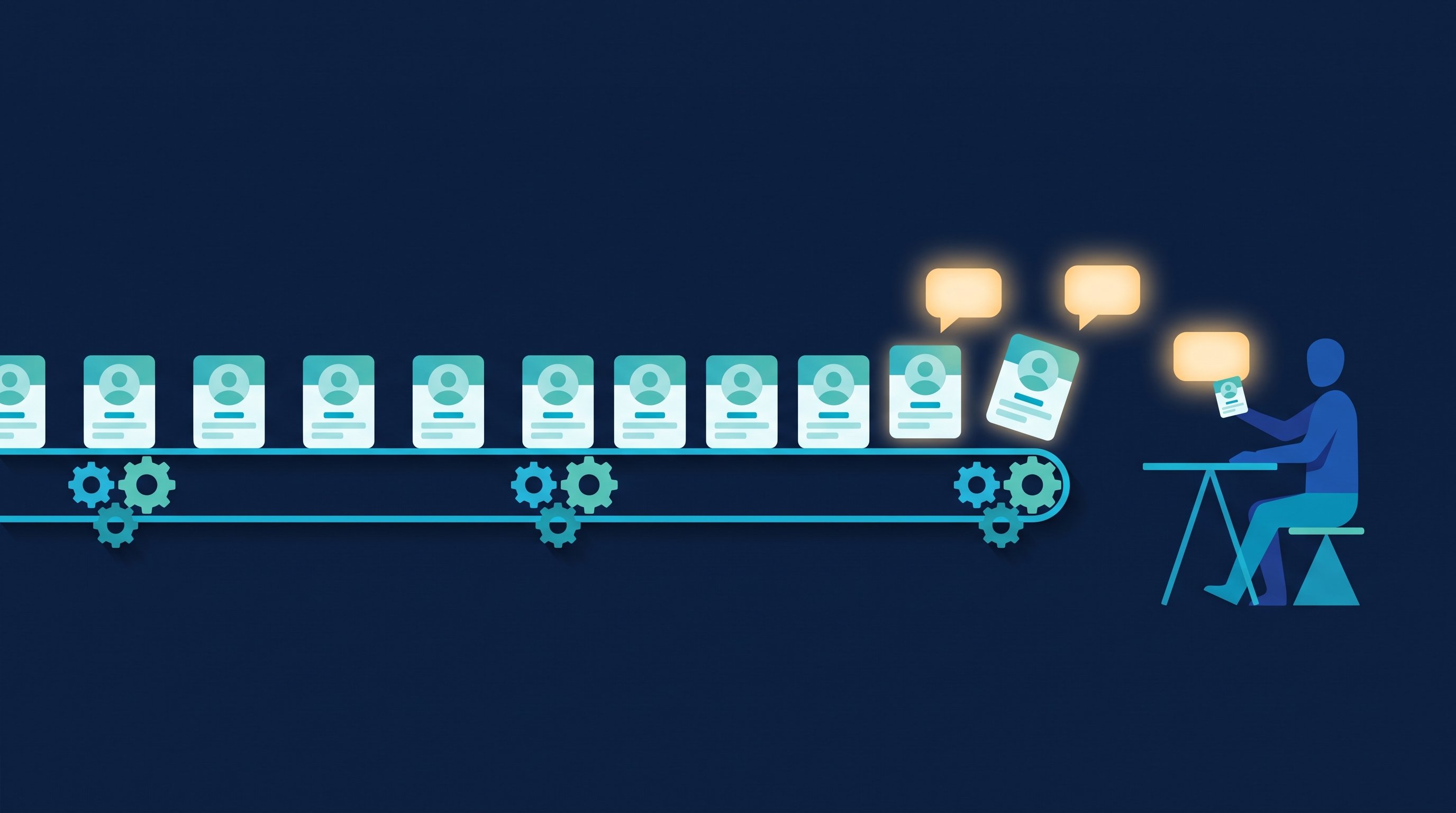
In short: Model your LinkedIn automation on a normal workday. Start small and ramp up slowly, allow breaks of random length, work fixed hours instead of around the clock, stay on one computer in one place, and send requests that get accepted.
As of: October 2026.
How an automation works is up to its settings. If you send a hundred requests on day one and leave the software running all night, you work differently from anyone at a desk. If you start with five requests, build in breaks and stop at 6 p.m., you use software the same way you would work without it: as someone who uses LinkedIn for sales every day.
This guide is about your settings while the automation runs. If your account is already restricted, our guide LinkedIn account restricted walks you through the next steps.
The principle: a normal workday
Take a salesperson who takes LinkedIn seriously. He starts in the morning, sends requests and answers messages. In between he takes calls, joins a meeting, gets a coffee. After work it's quiet. He sits at the same computer in the same office every day. And he reaches out to people who fit his offer, so many of them accept.
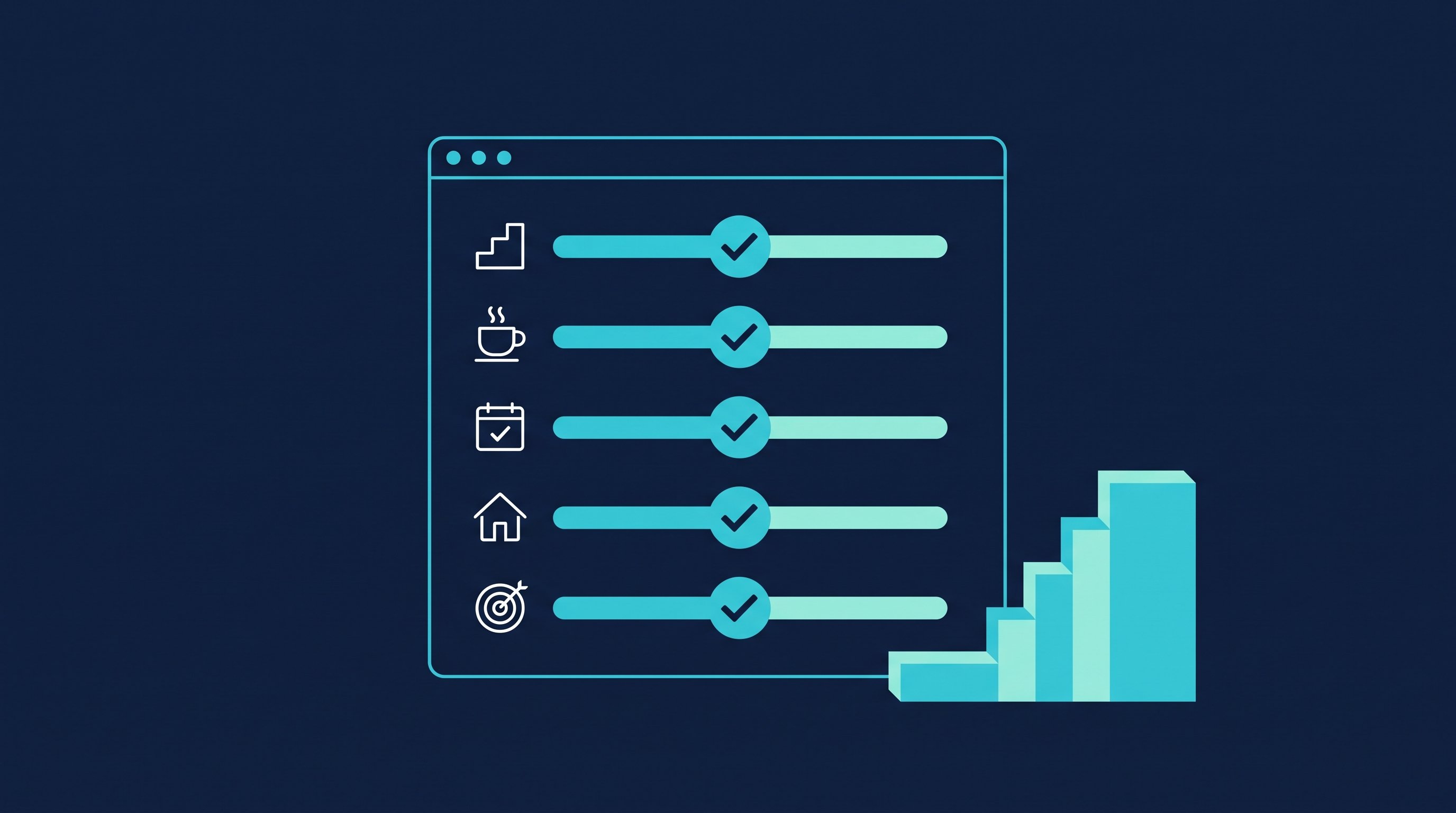
That picture is the benchmark for any automation. It gives you five steps:
- Pace: start small, ramp up slowly.
- Breaks: irregular, like a real workday.
- Working hours: fixed time windows, no night shift.
- Place: one computer, one connection, one tool.
- Quality: requests to the right people, old requests cleaned up.

Step 1: Start small and ramp up slowly
Nobody who uses LinkedIn by hand jumps from ten requests yesterday to eighty today. So set your automation to increase in small steps and then hold a level you can keep up for weeks.
LinkedIn doesn't publish a fixed number for connection requests. How LinkedIn's limit on requests works and where yours sits is covered in LinkedIn connections limit. For a first estimate for your account, use the free LinkedIn limits calculator.
How to set this up in CompLeadly:
- Daily value per step: For every connect step you set how many requests it sends per day at most. Above 40 per day, the app shows a notice and works out the weekly total for you.
- Ramp up automatically: Instead of a fixed number, you use a calculation placeholder. By default it takes the highest daily value of the last three days and adds 3, up to a maximum of 40. So the value rises per day, not per run. If you haven't sent requests for more than three days, it starts low again. In the workflow editor, the default starts at 5 requests per day and reaches 40 after 13 days. The how-to is in the knowledge article Calculation placeholders.
- Profile visits held back: By default, profile visits on a given day can be at most 50 above the highest daily value of the last three days, and no more than 500 per day overall.
This is what the first two weeks look like with the workflow editor's default:
Day | Connection requests per day |
|---|---|
1 | 5 |
2 | 8 |
3 | 11 |
5 | 17 |
8 | 26 |
10 | 32 |
13 and after | 40 |
That's a ceiling, not a target. If your account is new or you've rarely connected so far, ramp up more slowly and stop earlier. In the free version the daily value is 2 connection requests anyway, which suits getting started.
Step 2: Build in breaks like a real workday
At your desk you don't send fifty messages in a row at the same rhythm. You get interrupted, sometimes after ten minutes, sometimes after an hour. That's what you set in CompLeadly, and most of it is already preset.
- Breaks after a random number of actions: After 25 to 37 messages, openers or follow-ups, the app takes a 5 to 10 minute break. After 51 to 62 profile visits it's 24 to 29 minutes. The exact value is drawn from the range again on every run.
- Pace per hour: By default, CompLeadly visits at most 60 profiles per hour.
- Typing instead of pasting: Texts are typed at human typing speed instead of being pasted in. This option is on out of the box.
- A break as its own step: In a workflow you can add the step "Insert pause" between two features. The workflow then waits a random number of minutes from your range.
- Warm-up program (from Premium): It scrolls through your feed and notifications in the background, now and then expands a post and stays on it for a random time. That keeps your profile active on days when no campaign is running. The settings are explained in How to: Warm-up program feature.
You'll find all values in the app's "Expert Settings", with a minimum and maximum for each break. Our recommendation: leave them as they are. The defaults follow normal user behavior, and the CompLeadly features page explicitly advises sticking to the preset limits (Features, accessed on 12 October 2026).

Step 3: Fixed working hours instead of nonstop operation
You don't visit profiles at three in the morning yourself. So give your automation the working hours you would keep.
In CompLeadly you set a start and stop time, weekdays, and a start and end date for a scheduled run. Plan a realistic time window, for example Monday to Friday from 8 a.m. to 6 p.m., and leave out weekends and holidays if you don't work then. When you create a schedule, the app itself reminds you to avoid nonstop operation, especially at night. Recurring schedules are available from Basic, one-off schedules from Premium (Pricing, accessed on 12 October 2026).
Two things belong here that no setting takes care of:
- Don't do the work twice. You can keep using LinkedIn as usual while CompLeadly runs. Just avoid doing the same actions by hand and automatically at high volume at the same time. If you plan a day where you connect a lot yourself, pause the workflow for that day.
- No exports overnight. Large exports that run for many hours count as nonstop operation too. Put them inside your time window.
Step 4: One computer, one place, one tool
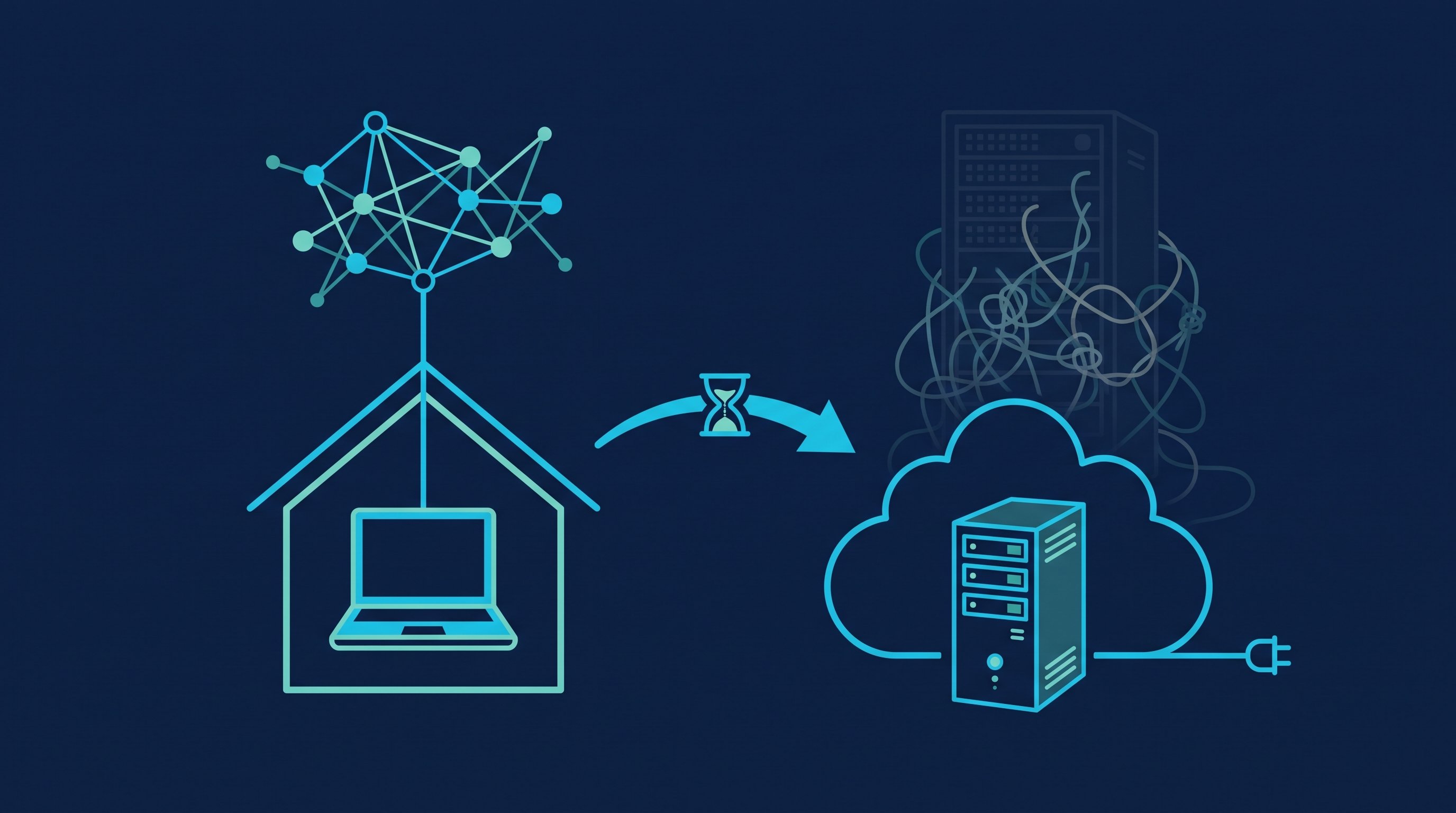
By hand you sign in from your laptop at the office, not from Frankfurt today and Singapore tomorrow. So with automation, work from one place too, just as you do without software.
The desktop app: your computer, your connection
CompLeadly is a desktop app for Windows, macOS and Linux. It controls a Chrome browser on your computer, and the connection runs through your own internet line. Your LinkedIn sign-in sits in the app's browser profile on your computer, with a separate profile for each account (Local, cloud or extension and how CompLeadly handles your data, both accessed on 12 October 2026). You can add your own proxy if you want to, but you don't need one.
The difference from a vendor's cloud service: there, the automation runs on the vendor's servers. Depending on the vendor, many accounts run through the same addresses, and the location doesn't always match yours. With the desktop app, your account works from the computer you sit at anyway. Which vendors are based and host where is covered in LinkedIn automation from Germany.
The cloud computer: your own server with a fixed IP
The desktop app needs a computer that's switched on. If you want CompLeadly ready around the clock, even when your laptop is closed, add the cloud computer. It's not a shared service but a server of your own, running the same app. For LinkedIn you use a fixed IP via Surfshark at a location that suits you. Surfshark comes preinstalled, and you bring your own license. You access it by remote desktop, from your phone too. The cloud computer costs $29.99 per month excl. VAT on top of your subscription (Local, cloud or extension, as of 12 October 2026).
"Ready around the clock" doesn't mean "active around the clock". Your schedule from step 3 applies on the cloud computer as well.
When you move to the cloud, the order matters. After setup, you only work through the cloud computer, so your account doesn't switch between two locations every day. Sign out of LinkedIn on your own computer and wait at least five hours before you sign in on the server. Use only one IP address for LinkedIn per day (Cloud Service).
You can see which devices are signed in from LinkedIn itself: click the "Me" icon, then "Settings & Privacy", "Sign in & security" and "Where you're signed in". Each session shows location, IP address and device type, and you can sign out of individual sessions or all others at once (LinkedIn Help, See where you're signed in, accessed on 12 October 2026).
One tool instead of several
Two automation tools on one account means two pacemakers that know nothing about each other. The breaks, daily values and time windows of one don't help while the other runs in parallel. Here too, the features page advises automating with one tool instead of several. The same goes the other way round: for several LinkedIn profiles, the features page recommends separate CompLeadly accounts.
Step 5: Requests that get accepted
Pace and breaks set how you work. Who you reach out to decides how well it goes. A request to someone your offer clearly fits is more likely to be accepted. The more requests get accepted, the fewer open requests pile up, and the more each one from your weekly budget brings you.
How much the audience matters shows in data from two CompLeadly accounts, as of 2026: the acceptance rate ranged from 12.6 to 36.7 percent depending on the audience. For the same audience, coaches, it ranged from 12.6 to 31.8 percent depending on the region. So test audience and text before you raise the pace.
Three habits help:
- Keep the audience narrow. Better a Sales Navigator search with 800 matching decision-makers than a list of 8,000 names that only roughly fit.
- Withdraw old requests. Open requests that sit for weeks don't bring anything anymore. In CompLeadly this is a feature of its own, preset with a calculation placeholder that raises the daily value by 1, up to a maximum of 25. Where to do it in LinkedIn itself is shown in How to see pending connections on LinkedIn and withdraw them.
- Add a note only if it says something. Whether a message with your request helps is covered in LinkedIn connections with or without a message.
How to automate the whole process from search to follow-up, and what stays with you, is covered in LinkedIn Outreach: What Automation Saves and What It Doesn't.
What CompLeadly takes care of
Step | What CompLeadly does | Default | Plan |
|---|---|---|---|
Pace | Daily value per step, calculation placeholder ramps up automatically | highest daily value of the last three days plus 3, so plus 3 per day up to 40; free version 2 per day | all, workflows from Basic |
Pace | Profile visits held back | at most 50 above the maximum of the last three days, 500 per day | all |
Breaks | Break after a random number of actions, random length | 25 to 37 messages, then 5 to 10 minutes | all |
Breaks | Typing at human speed | on | all |
Breaks | Warm-up program | a step of its own that you set up | from Premium |
Working hours | Schedule with start, stop, weekdays | your time window | recurring from Basic, one-off from Premium |
Place | Desktop app on your own connection | standard | all |
Place | Cloud computer with a fixed IP via Surfshark | optional | $29.99 per month excl. VAT on top |
Weekly limit | When LinkedIn reports the weekly limit, CompLeadly pauses the feature automatically | always | all |
After the trial with all features, you can keep using CompLeadly for free, with daily limits such as 2 connection requests, 10 messages to 1st-degree contacts and 1 follow-up per day, each step started individually. Workflows and recurring schedules start with Basic at $29.99 per month, or $24.99 on the yearly plan. The warm-up program is included in Premium, at $59.99 per month or $49.99 on the yearly plan. All prices excl. VAT, 10-day trial without a credit card, as of 12 October 2026 on the pricing page.
Our recommendation: Start with the defaults, change only audience and text in the first two weeks, and leave pace and breaks alone. Set up a time window that fits your workday. Once the acceptance rate is where you want it, raise the pace, not the other way round.
Recruiting and job hunting: same rules, different pace
Recruiting: If you fill several roles at once, it's tempting to start a separate workflow at full pace for each one. But all workflows share the same account and the same workday. If each role has its own workflow, split the daily value across the roles and give each role its own time window. With your own Recruiter Lite license, a Recruiter Lite search, pipeline or saved audience also becomes an audience in CompLeadly. Wording for your outreach is in LinkedIn recruiting messages, and the process is shown on the page for recruiters.
Job hunting: As a candidate you don't need a high pace, just a few requests that land: to hiring managers, recruiters and people at the companies you want to work for. The free version of CompLeadly with 2 connection requests per day is enough for that. Over a month of workdays, that's around 40 requests. In the free version you start the step yourself each day; schedules come with Basic. What else to avoid when job hunting on LinkedIn is in LinkedIn mistakes when job hunting.
FAQ: LinkedIn automation best practices
How many connection requests per day should I automate?
LinkedIn doesn't give a fixed number. Start small and ramp up slowly. In CompLeadly, the default calculation placeholder raises the daily value by 3 per day up to a maximum of 40, and above 40 per day the app shows a notice. A good acceptance rate matters more than the number.
What lowers the risk for my account when automating?
Behavior that fits a real workday: a pace that rises slowly, breaks of random length, fixed working hours instead of nonstop operation, one computer in one place, one tool, and requests to people your offer fits.
Is a desktop app better than a cloud tool?
A desktop app works from your own computer over your own connection. With a vendor's cloud service, depending on the vendor, many accounts run through the same addresses, and the location doesn't always match yours. If you need it to run without your computer switched on, your own cloud computer with a fixed IP is the middle ground.
Can I keep using LinkedIn on the side?
Yes. Just avoid doing the same actions by hand and automatically at high volume at the same time, and use LinkedIn from the same place as the automation where you can. If CompLeadly runs on the cloud computer for you, use LinkedIn by hand only there too, by remote desktop.
What happens if LinkedIn still reports a limit?
When LinkedIn reports the weekly limit for connection requests, CompLeadly pauses the feature automatically. If LinkedIn reports at sign-in that your account is temporarily restricted, workflows pause for 48 hours by default, and for 72 hours from the second time on. The next steps are in LinkedIn account restricted.
What does the CompLeadly cloud computer cost?
$29.99 per month excl. VAT on top of your CompLeadly subscription. You bring your own Surfshark license for the fixed IP.