The LinkedIn cover image on your profile measures1,584 x 396 pixels, which is the size LinkedIn recommends. The file must be smaller than 8 MB and in JPG or PNG format. Company pages have different dimensions: 1,512 × 256 pixels, with a maximum file size of 3 MB. An event banner needs a 16:9 aspect ratio.
Below, you’ll find all the dimensions in a table, the steps to change them, a diagram showing the safe area, and three design ideas for inspiration.Last updated: October 17, 2026. Measurements as of: October 2026, all figures from the LinkedIn Help Center, verified there on October 3, 2026.
LinkedIn cover image size: all dimensions in the table
These figures come directly from LinkedIn’s help articles. Where LinkedIn provides no figure, the table says “not specified”. Made-up numbers won’t help you decide which plan fits.
Image | Pixel dimensions | Aspect ratio | Max. file size | Formats |
|---|---|---|---|---|
Profile banner image (background image) | 1,584 x 396 px (recommended) | 4:1 (calculated from the dimensions) | smaller than 8 MB | JPG, PNG |
Company page: Logo | at least 268 x 268 px, recommended 400 x 400 px | one-to-one | 3 MB | PNG, JPEG |
Company page: Cover image | 1,512 x 256 px | not specified by LinkedIn | 3 MB | PNG, JPEG |
Careers page: Main image | 1,128 x 376 px | 3:1 (calculated from the measurements) | 3 MB | PNG, JPEG |
Event cover image | 480 x 270 px or 1,280 x 720 px, minimum width 480 px | 16:9 (required) | not specified by LinkedIn | not specified by LinkedIn |
Sources, all accessed on October 3, 2026:linkedin.com/help: Add or change a cover photo on your profile,linkedin.com/help: Image specifications for your Company Pages and Career Pages it and enter it linkedin.com/help: Create a LinkedIn Event.
TheProfile photoIt’s missing from the table because the three help articles above don’t specify pixel dimensions for it. Use a square image with a decent resolution; the sources don’t provide any more detail.
Cover image, background image or banner: what LinkedIn really says
You’ll hear three names for the same image: cover photo, background image and banner. They all mean the wide image at the top of your profile, behind and above your profile photo.
LinkedIn itself isn’t entirely consistent here. The German help article is titled “Add or change a cover image on your profile,” its URL refers to a background image, and the upload page in the mobile browser is called “Add background image.” So you can search for any of the three terms and find the same image. The important thing is that a profile cover image is different from a company page cover image. Each has its own dimensions.
How to change your LinkedIn background image: Step by step
The steps differ between the desktop version and the app. The labels are taken directly from the German help article.
On desktop
- Click the “Sie” icon at the top of your home page.
- Select “View Profile.”
- Click the camera icon in the top right of the introduction section.
- Choose whether you want to upload a single photo, create a slideshow (Premium feature), or select an image.
- Crop the image, apply a filter if needed, and click “Apply”.
In the app
- Tap your profile photo, then tap it again to open your profile.
- Tap the camera icon in the top right of the introduction section.
- Upload a single photo from your photo library or select one of the images shown.
- Crop the photo, apply a filter if needed, and adjust its position and size.
- Tap “Save”.
To change an existing cover photo in the app, tap it directly in the introduction section. There you’ll find “Edit,” “Add photo,” and “Delete.”
If you want to show multiple visuals instead of a single static image, it is worth taking a look at theCover image slideshow for your profile.
LinkedIn Banner Size: The Safe Area for Text
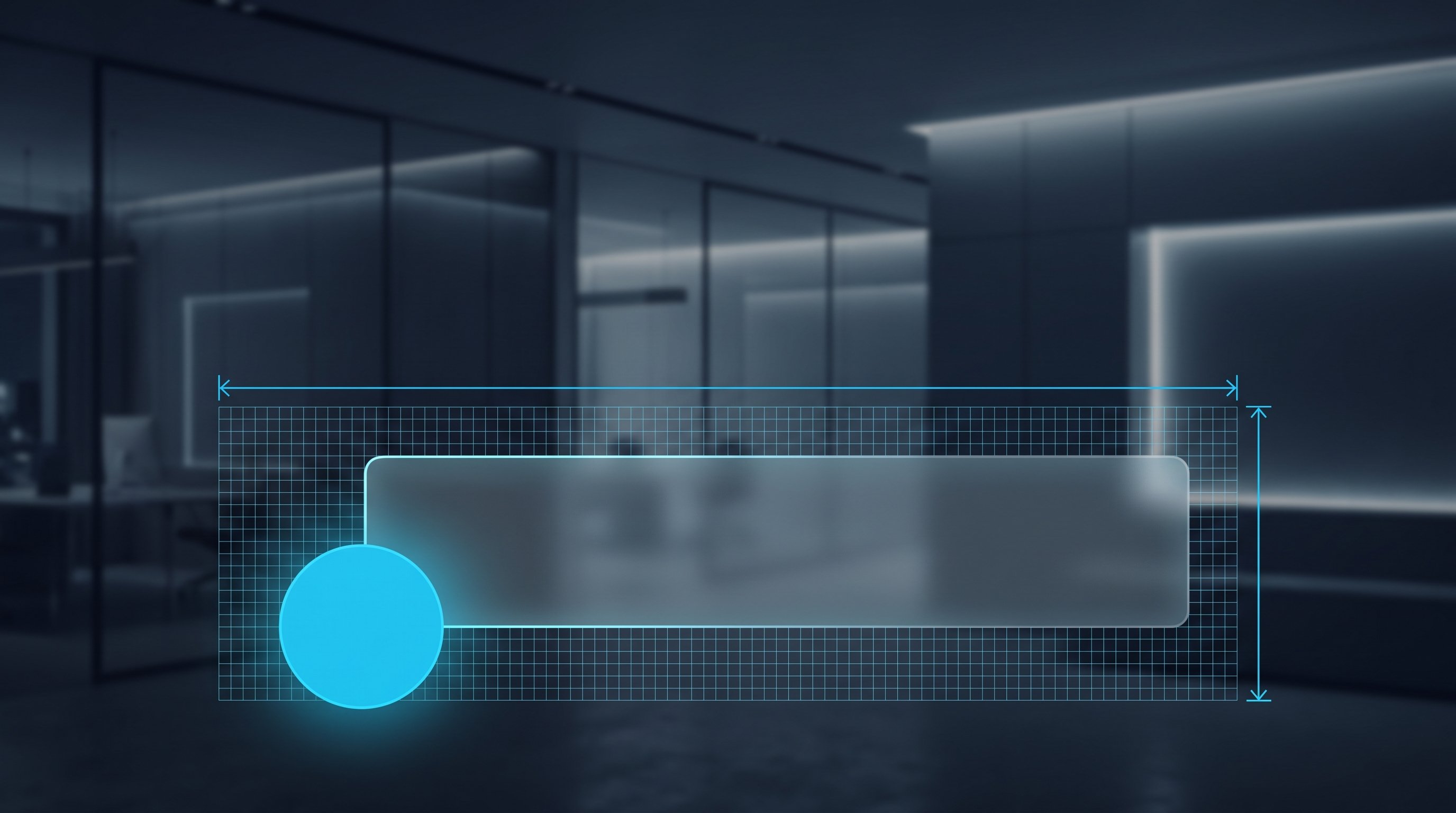
The biggest pitfall isn’t the resolution—it’s the layout. Your profile photo overlaps the bottom-left corner of your cover image, hiding part of it. Anything in that area won’t be visible.
LinkedIn doesn’t specify a pixel-based safe zone for the profile cover image.Any number you find online for this is a third-party estimate, so we don’t give one here. LinkedIn is more specific about company pages: the cover image is adjusted to fit different screen sizes and may be cropped horizontally or vertically. LinkedIn recommends using a high-quality image with little text. Keep important details away from the edges, “especially the bottom-right corner.”
That leads to a rule that doesn’t rely on made-up pixels:
- Leave thebottom-left corner clear, that’s where your profile photo is.
- On the company page, also keep theKeep the bottom right corner clear..
- Add text and logocentered or slightly right of centerand keep a distance from all four edges.
- Keep the textshort: one line, not three.
Desktop vs. mobile: what gets cut off
On desktop, you see the cover image at full width. On a phone, there’s less space, and LinkedIn crops the image differently. Exactly how much gets cut off depends on the device, and no help article specifies it. That’s why you need to test it.
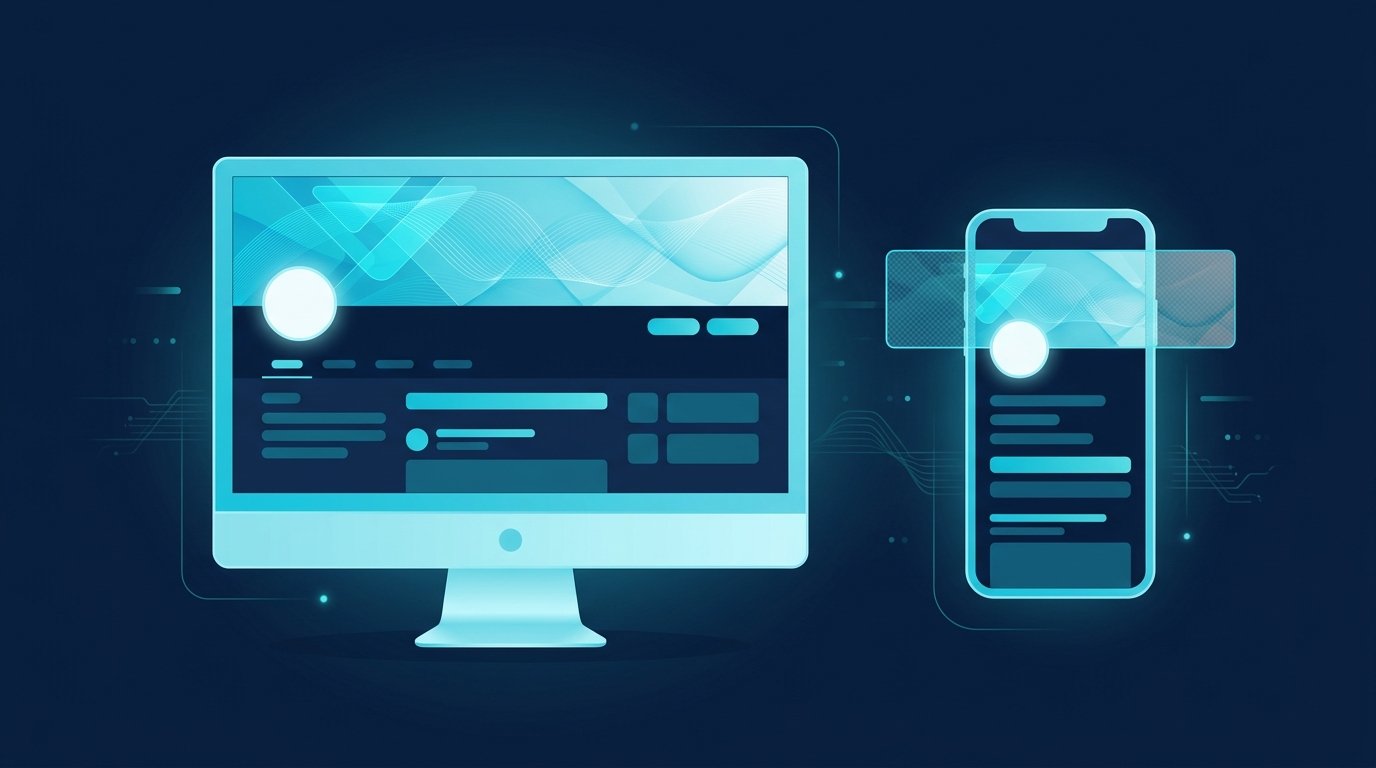
How to check your banner in five minutes:
- Upload the image on your desktop and view your profile.
- Then open your profile in the app on your phone.
- Check that the text and logo are fully legible on both devices.
- Check whether the profile photo covers anything important.
- If something is too close to the edge, move it toward the centre and upload the image again.
The guide shows you how to build a layout like this without design software.Create a LinkedIn banner with Canva.
What to put on your cover image: three example banners
Your cover image is the largest open space on your profile. It should show who you work with and what you stand for in two seconds. A stock photo of a skyline won’t do that.
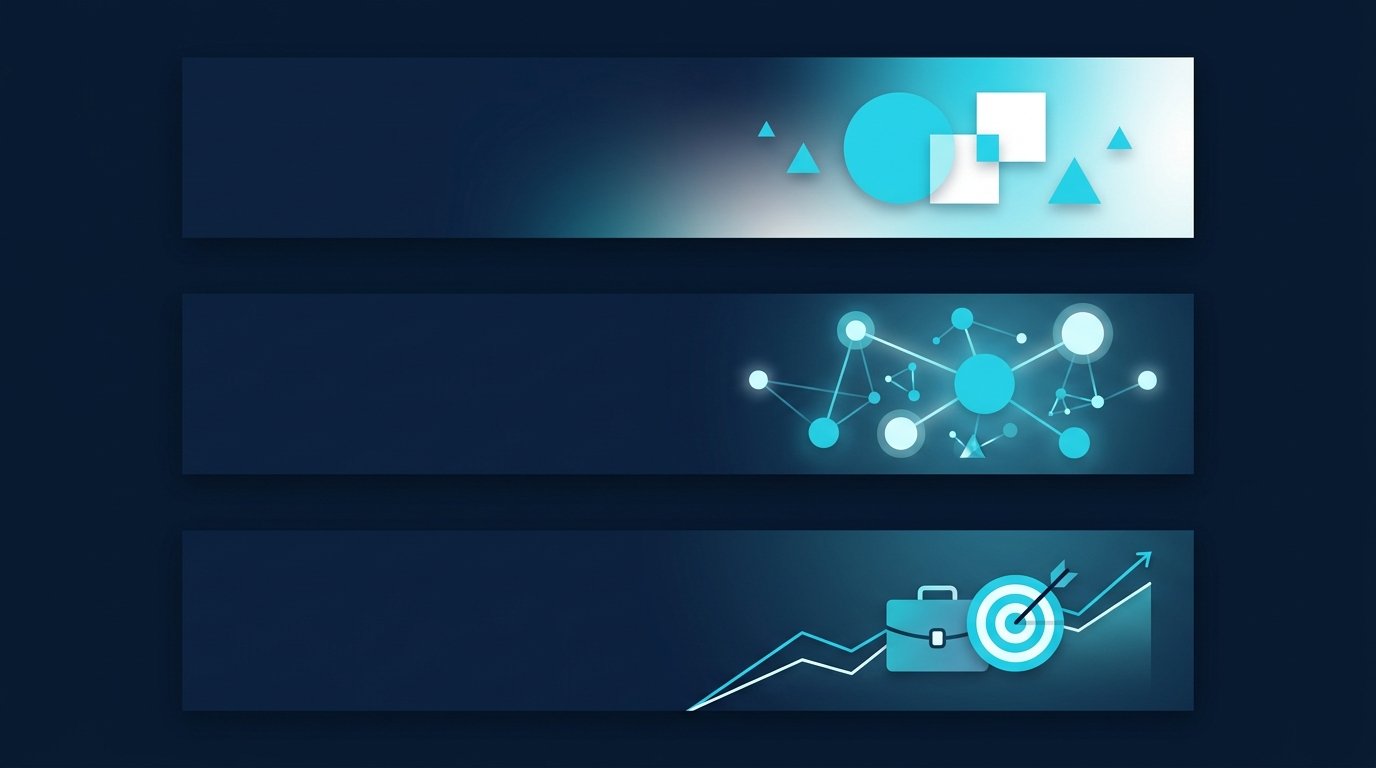
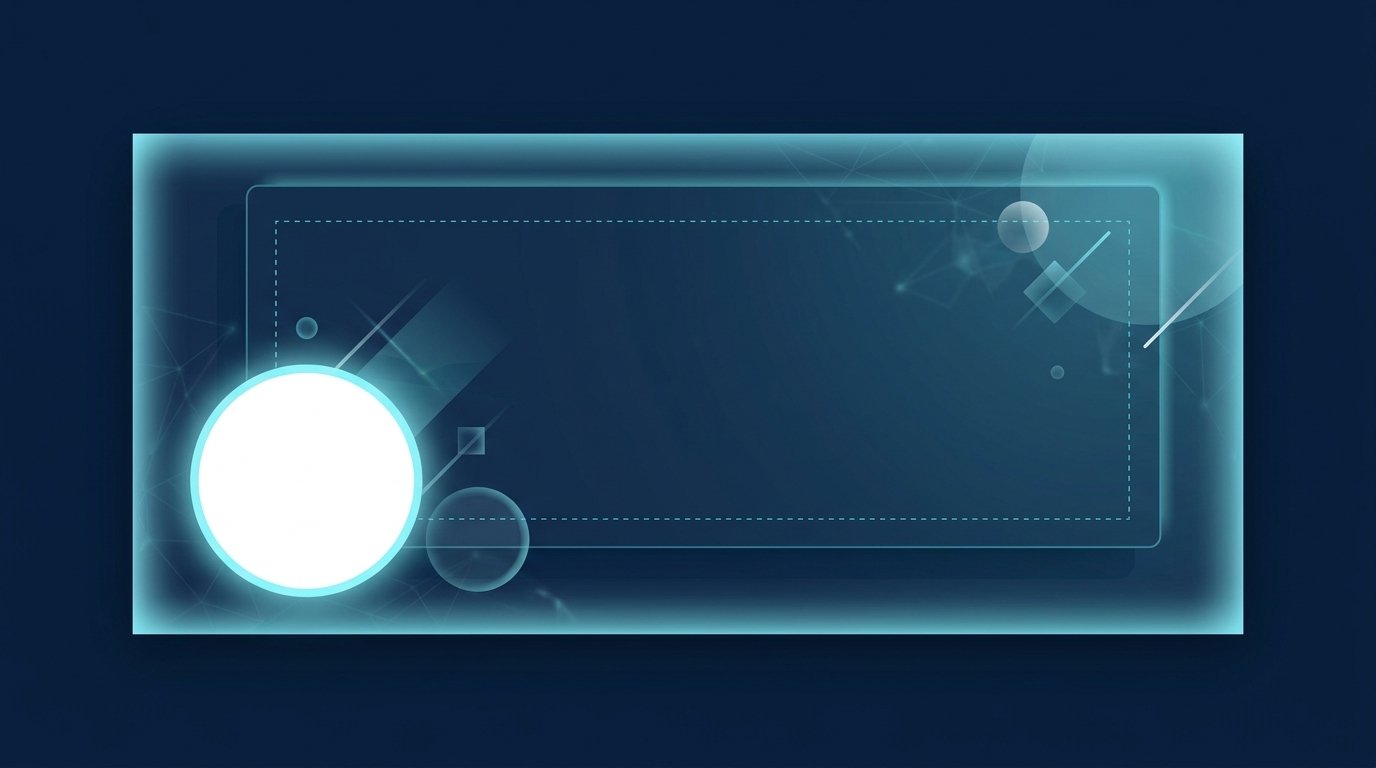
The three drafts above are abstract layouts without text; they only show the placement. On your own banner, add a short line in the centre:
- Smooth flow with shapes:Works well for consulting and services. The line states what you offer, for example, “[Service] for [Target Audience]”.
- Network of dots:Works for teams and recruiting. The line names the roles you’re currently hiring for or the team behind them.
- Curve with target:Works for sales and job searches. The line states the result you deliver or the role you’re aiming for.
The line below your name answers the same question. You can find formulas and 15 copyable examples for it in LinkedIn Profile Slogan: Examples for Your Headline. If you’d rather get suggestions, try the free headline generator.
Open the tool: LinkedIn Headline Generator
If your profile needs a general tidy-up, go through it step by step. The postThe Perfect LinkedIn Profile in 6 Stepsgoes through the individual areas, and theProfile Optimisation Checklisthelps you check things off.
Cover image for sales, recruiting, and job search
In sales, your banner is the first impression someone gets after visiting your profile: when they click back, they can see in two seconds what problem you solve. The same rule applies to recruiters, but with a different message. A recruiting banner names the roles you’re hiring for and shows the team behind them. A candidate who opens your profile after receiving your request immediately understands what it’s about. If you’re looking for a job, your banner can show your target role or area of expertise. Hiring managers whose profiles you’ve visited will see you in their visitor list and may click back.
You can plan these visits: CompLeadly is a desktop app that runs locally on your computer. It visits profiles in a target audience from people search or, with a Recruiter licence, from Recruiter searches. It can follow them if you choose, then send a connection request and an opening message. In the free version, CompLeadly visits up to 25 profiles per day (a basic feature with a daily limit). Following profiles during visits is available from Basic. You can find the recruiting workflow at Direct outreach for recruiters.
Common mistakes with LinkedIn cover images
- Upload image too small. Use the recommended 1,584 x 396 pixels. If your cover image looks blurry or pixelated, LinkedIn recommends using an image with a larger file size.
- Place important elements in the bottom left.There, it covers your profile picture.
- Incorrect aspect ratio. A square image is cropped to 4:1, leaving only a strip of your original image.
- Too much text. It’s barely readable on a phone.
- Use the company page dimensions for your profile.1,512 × 256 pixels is a different aspect ratio than 1,584 × 396 pixels.
Frequently Asked Questions About LinkedIn Banner Size
What size should a LinkedIn cover image be in 2026?
LinkedIn recommends 1,584 x 396 pixels for profile cover images, a 4:1 aspect ratio. The file must be smaller than 8 MB and in JPG or PNG format. As of October 2026.
What size should the cover image on a LinkedIn Company Page be?
1,512 x 256 pixels. The logo must be at least 268 x 268 pixels; 400 x 400 pixels is recommended. The following applies to all images on company and careers pages: PNG or JPEG, maximum 3 MB.
Is the LinkedIn background image the same as the cover image?
Yes. LinkedIn uses both terms for the wide image at the top of your profile: its help article calls it a cover image, while the upload page in a mobile browser calls it a background image. Many people also call it a banner. They all mean the same image.
Where is the safe zone in a LinkedIn banner?
LinkedIn does not publish a pixel-based safe zone for profile cover images. What you do know is that your profile photo overlaps the bottom-left corner and the image is cropped differently on a phone than on a desktop. Keep that corner clear, place important content in the centre and check the result on both devices.
What size does a LinkedIn event banner need to be?
According to LinkedIn’s help article, 480 x 270 or 1,280 x 720 pixels. The minimum width is 480 pixels, and the aspect ratio must be 16:9. LinkedIn does not specify a file size or format there.