In short: LinkedIn Post Inspector shows you how LinkedIn turns a link into a preview, which data is missing on the page and when LinkedIn last pulled that data. You can also request a fresh scrape there. You need to be signed in to LinkedIn. The updated preview only applies to new posts; existing posts keep the old one.
Last updated: November 2026. Steps and specs come from LinkedIn's help center and the tool's start page. The labels quoted here are the English ones we saw when we tested the tool on November 7, 2026.
What LinkedIn Post Inspector is
When you share a link on LinkedIn, LinkedIn builds a preview with an image, a title and a short description. It pulls that data from the target page and caches it. Post Inspector is LinkedIn's own tool for seeing what it pulled and, if needed, pulling it again.
On the tool's start page, LinkedIn lists three uses:
- Find missing data: the tool shows which data is missing on your page and what to add so your content gets better previews in posts.
- Refresh the data: if your page changed recently, you can see when LinkedIn last updated its data and request a re-scrape.
- Debug issues: LinkedIn explains how it extracts your page's metadata and what could have gone wrong.
At the top of the page there's an input field that says "Enter a URL to see how it is shared on LinkedIn," with an "Inspect" button next to it. You won't get far without signing in: in our test, clicking "Inspect" took us to LinkedIn's sign-in page. So have your LinkedIn account ready before you check a link.
Anyone who shares links can use it. In sales, that's case studies and landing pages. In recruiting, it's job postings on your careers page. For job seekers, it's a portfolio. In every case, the preview is the first thing people see, before they ever click.
How to check and refresh a link preview, step by step
The usual trigger: you changed the image or headline on your page, and LinkedIn still shows the old version when you share it. According to LinkedIn's help center, that's the cache at work. If the same URL has been shared before, the image may already be stored, and that's what shows up in your new post, message or article. Here's what to do:
- Sign in to LinkedIn and open Post Inspector at linkedin.com/post-inspector.
- Paste the URL you want to share and click "Inspect."
- Check the preview window: are the image, title and description right?
- If the data is out of date, request a re-scrape. According to the tool's start page, you'll also see when LinkedIn last pulled the page.
- Then create a new post with the link and check the preview in the composer before you publish.
What changes and what doesn't
A refresh only works going forward. LinkedIn puts it this way: "The preview for any existing posts with this URL will remain the same." A post that's already in the feed with the old image keeps it. The new preview only shows up in posts you create after the refresh.
If LinkedIn still shows old content after that, the help article on troubleshooting issues sharing URLs gives a waiting period: allow 48 hours from the last time the URL was shared before you try again. If you just updated the tags on your site, LinkedIn also asks you to wait 48 hours for the changes to take effect. So plan changes to a page you're about to share at least two days ahead.
What LinkedIn needs for the preview
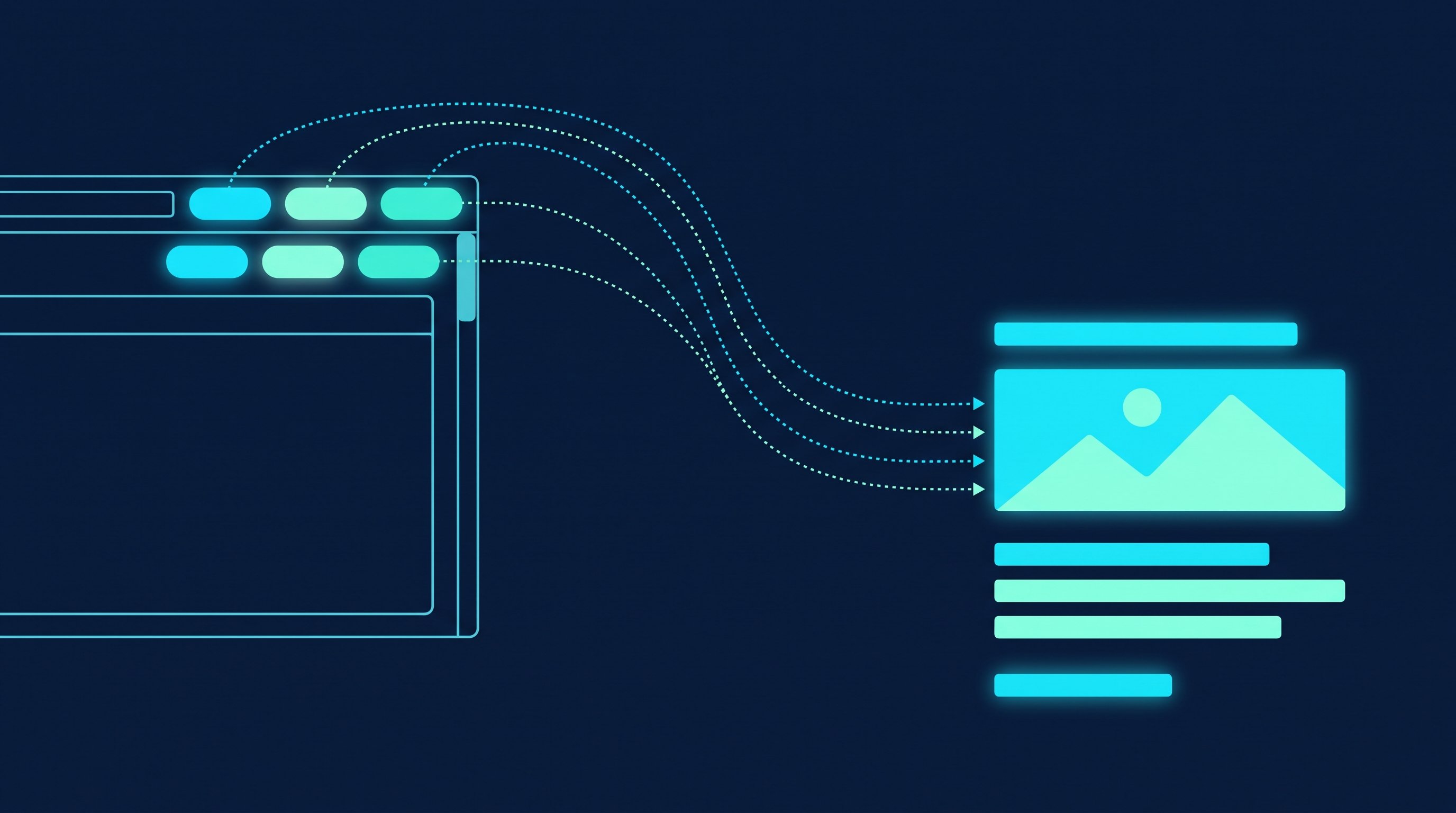
LinkedIn reads the preview from the page's source code. According to its help center, the share box relies on oEmbed and the Open Graph Protocol (OGP). If a page uses neither, LinkedIn may pull nothing at all or the wrong content from the page. The help article Make your website shareable on LinkedIn lists four og: tags that must exist:
Tag | What it controls | What to check |
|---|---|---|
og:title | The title in the preview | The title of the article or page |
og:description | The text under the title | One sentence that says what the reader gets on the page |
og:image | The preview image | A publicly reachable image, see the specs below |
og:url | The page address | The address of exactly this page |
For the image, the same article gives LinkedIn's own specs:
- max file size of 5 MB
- at least 1200 x 627 pixels (width x height)
- recommended aspect ratio of 1.91:1
- images less than 401 pixels wide display as a thumbnail
If you don't build your website yourself, pass this list on to whoever maintains it. LinkedIn suggests the same. If you'd rather show slides or images than a link, a document post is the alternative. Our guide to the LinkedIn carousel shows how.
Common link preview problems and how to fix them
Most problems have a cause that LinkedIn names in its own help center:
What you see | Cause, per LinkedIn's help center | What to do |
|---|---|---|
Old image or old title | The URL was shared before, and LinkedIn shows the cached version | Request a re-scrape in Post Inspector, then create a new post |
No image, even though it meets the specs | The website keeps LinkedIn from pulling the image, or the image sits in a protected directory | Put the image somewhere publicly reachable and check again |
Only a small image next to the text | The image is less than 401 pixels wide | Use an image of at least 1200 x 627 pixels |
Wrong title, wrong text or no preview | The page uses neither oEmbed nor Open Graph | Add the four og: tags; for someone else's site, let the owner know |
The link can't be shared, error message | The URL contains spaces | Remove the spaces or encode them as %20 |
"Cannot display preview" when posting on a company page | May be due to the landing page's SSL certificate | Have the landing page's certificate checked |
Updated tags don't show yet | LinkedIn says to allow 48 hours for tag changes to take effect | Wait, then check again in Post Inspector |
For missing images, a quick test helps: open the image address from og:image directly in a private browser window. If the image doesn't load there, or only after signing in, LinkedIn probably can't reach it either. For company pages, LinkedIn mentions the SSL issue in its guide to troubleshooting Page posts.
The preview is only part of the post. Set line breaks and emphasis in the text above it with the LinkedIn text formatter, and check the length with the character counter.
Checklist: before you share a link
- Check the preview: enter the link in Post Inspector and check the image, title and description.
- Just changed the page? Request a re-scrape and plan up to 48 hours of lead time.
- Image: at least 1200 x 627 pixels, no more than 5 MB, 1.91:1 ratio.
- URL: no spaces, ideally short and readable.
- Text: write so the post is useful even without a click. What LinkedIn favors in the feed is covered in LinkedIn algorithm 2026.
- Timing: which times studies point to is covered in the best time to post on LinkedIn.
- Hashtags: a few relevant ones; more in LinkedIn hashtags: how many, which ones, where.
If your posts still don't bring in inquiries despite a clean preview, look at the usual reasons in why your LinkedIn posts aren't generating leads.
Links in sales, recruiting and job searching
Previews don't only show up in posts. According to LinkedIn's help center, a message with a URL also shows a preview window, and the old cached image can appear there too. If you send the same link to many contacts, check it once in Post Inspector first. It takes a minute and saves fifty recipients from seeing your old preview image.
Sales: a case study or landing page in your message
In sales, the link often sits in the first message after someone accepts your connection request, or in a follow-up, pointing to a case study or a landing page. With CompLeadly, you send new contacts an opener after they connect, followed by follow-ups. On the free version, you use basic functions as single steps with a daily limit, for example one opener, one follow-up and 10 messages to 1st-degree contacts per day. From Basic, the steps run as a scheduled workflow. From Premium, you can also add attachments to messages when a PDF works better than a link. For wording, see the follow-up templates, and run your text through the message check before you send. More under CompLeadly for sales teams.
Recruiting: a job posting with a clean preview
In recruiting, you usually link to the job posting on your careers page. If the preview shows the title of an old role or no image at all, your outreach looks generic. Check the link before you put it into a message to candidates or a post. CompLeadly also builds target audiences from LinkedIn Recruiter searches, pipelines and saved searches, if you use Recruiter, and from Basic your outreach runs as a scheduled workflow. More under CompLeadly for recruiters. Whether a paid job posting on LinkedIn is worth it is covered in LinkedIn job posting cost.
Job seekers: a portfolio link in your message to recruiters
When you're job hunting, you often send recruiters or hiring managers a link to your portfolio, personal website or a project. If the image is missing or the title is a placeholder, the link looks unfinished. Check your page in Post Inspector and add any missing og: tags. Then reach out to the right people directly: search LinkedIn's people search for recruiters at the employers you want to work for and save that as a target audience in CompLeadly, as described in Create a LinkedIn target audience. On the free version, you take the steps one at a time with a daily limit, for example 2 connection requests per day. From Basic, that becomes a workflow: visit the profile, connect, message once accepted, follow up.
All plans are on the pricing page. To try it, get the app from the download page and test Premium for 10 days with no payment details. The trial ends automatically, and you continue on the free version with basic functions and a daily limit.
FAQ: LinkedIn Post Inspector
What is LinkedIn Post Inspector?
A LinkedIn tool at linkedin.com/post-inspector. You enter a URL and see how LinkedIn displays it as a preview, which data is missing and when LinkedIn last pulled the page. You can also request a re-scrape there.
Do you need a LinkedIn account to use Post Inspector?
Yes. In our test on November 7, 2026, inspecting a URL without signing in took us to LinkedIn's sign-in page.
Why does LinkedIn still show the old preview image?
Because LinkedIn caches a URL's data once it has been shared. Request a re-scrape in Post Inspector and create a new post. If that doesn't help, LinkedIn suggests waiting 48 hours from the last time the URL was shared.
Does Post Inspector change the preview of existing posts?
No. According to LinkedIn, a refresh only affects new posts with that URL. Existing posts keep their preview.
What image size does a LinkedIn link preview need?
At least 1200 x 627 pixels and no more than 5 MB, with a recommended ratio of 1.91:1. LinkedIn shows images less than 401 pixels wide as a thumbnail.
What if a link can't be shared at all?
Check whether the URL contains spaces. According to LinkedIn, URLs with spaces can't be shared. Remove or encode the spaces. For posts on company pages, a "cannot display preview" error may be due to the landing page's SSL certificate.