In short: A meeting scheduling tool shows your contact your free times and puts the meeting into both calendars. To get started, the free versions of Calendly, HubSpot, Cal.com or Zeeg are enough; if you have Microsoft 365, you already have Bookings. On LinkedIn, the link alone won't get you a meeting. It belongs on your profile, and in the chat once someone shows interest, as an extra next to two concrete times.
As of: October 2026. We checked prices and server locations on the providers' own pages in October 2026.
The tool is the smallest part of the work. A booking link takes minutes to set up. It only brings meetings once a conversation has started. On LinkedIn, the link is the last step, not the first.
Below you'll find five tools compared, and after that, where the link belongs on LinkedIn. Ready-made wording for the meeting request is in Meeting request email: templates for email and LinkedIn.
What a meeting scheduling tool can and can't do
A meeting scheduling tool connects to your calendar, for example Google or Outlook, and shows only the times you're free on a booking page of its own. Your contact picks a time, enters name and email address, and the meeting lands in both calendars, with a video link if you want one. Most tools then send a confirmation and a reminder before the meeting.
What a tool can't do: decide whether someone wants a meeting. It only books once your contact has already said yes. Why booking links often go nowhere on LinkedIn, and when you're better off asking for the phone number, is covered in Why many LinkedIn meetings fall through.
5 meeting scheduling tools compared
We picked five tools that cover different starting points: starting for free, HubSpot as your CRM, Microsoft 365, and servers in Germany. The table shows what the free version does, what the first paid tier costs and where the data is stored according to the provider.
Tool | Free version | First paid tier | Server location according to the provider |
|---|---|---|---|
Calendly | yes, 1 event type, 1 calendar | Standard: $10 per seat and month billed yearly, $12 billed monthly | data centers in the US (Google Cloud, Amazon Web Services) |
HubSpot Meetings | yes, 1 personal meeting link with HubSpot branding | in the paid Sales Hub editions, up to 1,000 links without HubSpot branding | US for free-only accounts; with a subscription also the EU |
Microsoft Bookings | no | for example in Microsoft 365 Business Basic: €6.07 per user and month on Microsoft's German price page, billed yearly, excl. VAT | data in Exchange Online; for tenants in the EU or Germany, calendar items in that region |
Cal.com | yes, unlimited event types and calendars | Teams: $12 per user and month billed yearly | US; EU hosting according to the pricing table from Organizations ($28 per user and month billed yearly), and via Cal.eu from 50 users |
Zeeg | yes, 2 scheduling pages, unlimited events | Professional: €10 per user and month billed yearly, €12 monthly, excl. VAT | Germany |
As of October 2026, according to the providers' pricing and help pages. Calendly and Cal.com show US dollars without a tax note, Zeeg shows euros only. Microsoft's US price page blocked our automated check, so the table uses the German price. HubSpot's pricing page loads the prices of the paid editions only via script, which is why they're missing here.
Calendly: Automated reminders before the meeting start with Standard. The data center information is in Calendly's help center.
HubSpot Meetings is part of the free HubSpot CRM, and every booking lands in HubSpot as a contact with a meeting. The free scope is listed in the HubSpot Product & Services Catalog. On location, HubSpot says: free-only accounts are hosted in the US, and new customers with a subscription get their location based on their IP address at sign-up. If you move from a free account to a subscription, you can migrate your data to another data center at no extra cost; the Data Hosting tab in your account settings shows where your data sits.
Microsoft Bookings comes with Microsoft 365 Business Basic, Business Standard and Business Premium, among others. If you already have one of these subscriptions, you pay nothing extra (Microsoft Learn). For tenants in the EU or Germany, Microsoft commits to storing calendar items in Exchange Online in that region; you can see the actual location in the admin center (Microsoft Learn, data residency for Exchange Online).
Cal.com: The free version also sends email and SMS notifications. The company is based in the US and processes data there. The pricing table lists EU hosting from the Organizations tier; for companies with 50 users or more, there's also Cal.eu.
Zeeg comes from Germany, and workflows start with Professional. According to Zeeg, all data is hosted on servers in Germany.
We use two of the five tools ourselves: HubSpot Meetings for the meetings on our service pages, Calendly on our contact page.
Our recommendation: pick the tool that fits what you already use. With Microsoft 365, that's Bookings. With HubSpot as your CRM, it's HubSpot Meetings; if your data should stay in the EU, you need a subscription and possibly a move to the EU data center. If you only need one link and want your data in Germany, start with Zeeg. For several event types at no cost, Cal.com is enough. You can switch later, because the only thing visible to others is the link.
Setting up the booking page for LinkedIn contacts
A booking page for LinkedIn contacts looks different from one for existing customers. The person has known you for a few messages. Every hurdle on the page costs bookings.
- One event type, one topic. Name it the way you named the call in the chat, for example "Intro call on shift planning, 20 minutes". Add your photo and one sentence about yourself, so the page looks like the person from the chat and not like a form.
- Keep it short. 15 to 20 minutes for the first call. If you need more, extend it during the call.
- Near dates, notice, buffer. Show only the next two weeks, set at least half a day of notice and ten minutes of buffer between two calls.
- Ask little. Name and email address are enough. An optional question such as "What would you like to talk about?" helps you prepare. Every extra required field is a reason to drop off.
- Turn on a reminder the day before, if your tool offers it in your tier. With Calendly, that's from Standard.
How to run the discovery call afterwards is covered in Discovery call: how to book, prepare and run it.
Booking link on LinkedIn: where, when and how often
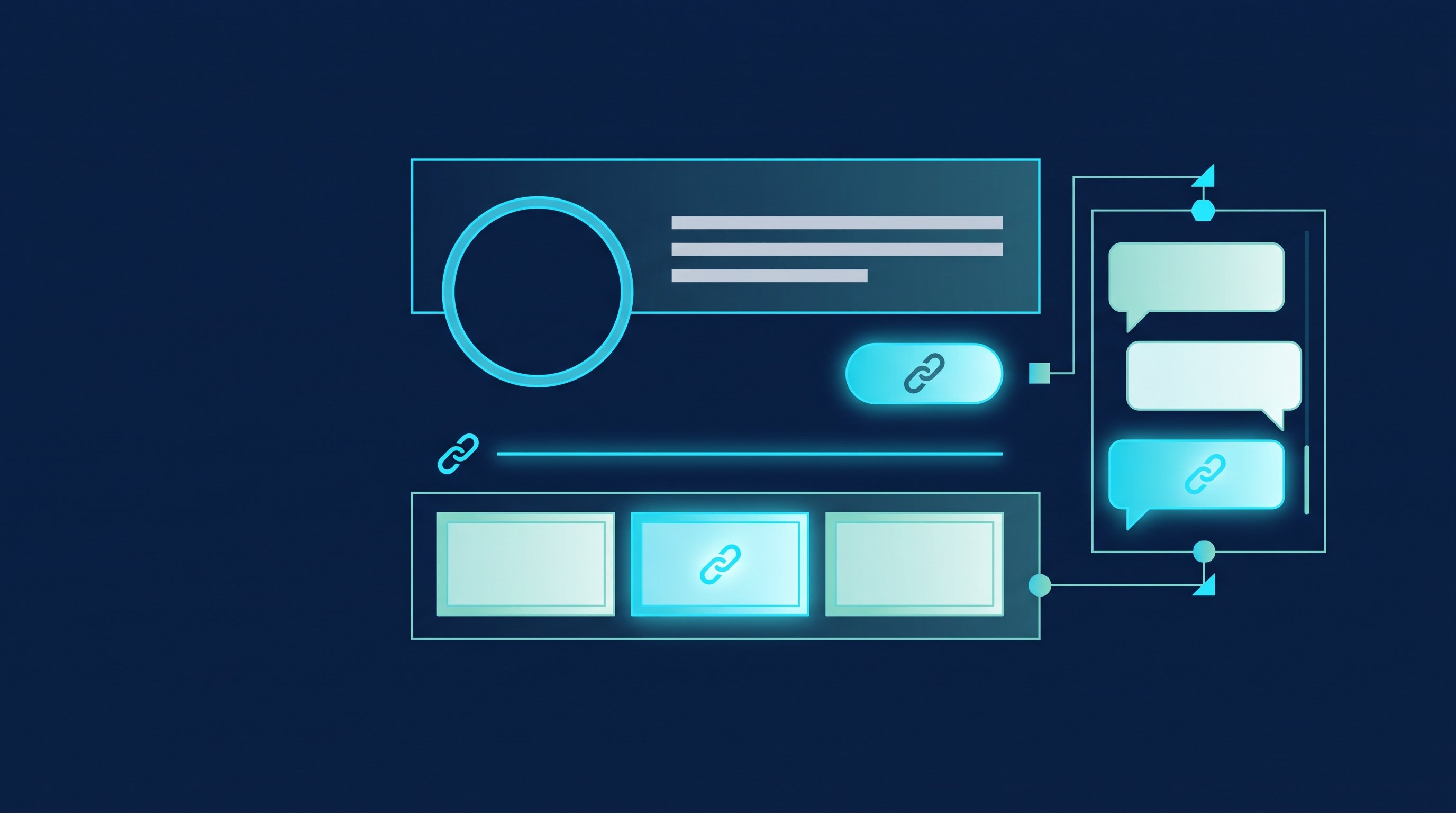
Where: on your profile, so interested people can find it
On your profile, the link bothers nobody. LinkedIn offers three places:
- Contact info: You can display up to three website links on your profile, shown in the contact info of your introduction section (LinkedIn Help, add a website). One of them can be your booking link.
- Featured: In the Featured section, you can show links to external websites (LinkedIn Help, Featured section), so your booking page too.
- Custom button "Book an appointment": A select group of Premium Business, Sales Navigator and Recruiter Lite subscribers can add a custom button with a URL to their profile. It shows on your profile, in search results, in messages and in the feed (LinkedIn Help, custom button). If LinkedIn has enabled it for you, your link appears in most places.
All three checked in October 2026. What else belongs in a profile that brings meetings is in The perfect LinkedIn profile in 6 steps.
When: in the chat only after interest
Not in the connection note and not in the first message. In both cases, the person doesn't know you yet, and a link reads like a sales pitch. Whether to add a note to your request at all is covered in LinkedIn connections with or without a message.
The right moment is the reply in which your contact shows interest. Then you suggest two concrete times and add the link as a way out. Two times can be answered with one word, and the link helps if neither fits. Link and suggestion are compared side by side in the meeting request templates.
One exception: if your contact asks for your free times, send the link right away, without a suggestion.
How often: once in the conversation, once in the sequence
In the chat, sending the link once is enough. If someone hasn't booked, follow up with a question instead of sending the link again. A new link in every message reads like pressure.
In an automated sequence, the link belongs in the last follow-up at most, as a friendly way out for everyone who hasn't replied: "If the topic fits later, here's my calendar." Whoever books then costs you no further message.
Three messages with a booking link
Here are three examples from a sales lead who sells shift planning software to home care providers. The names are made up.
1. Reply after your contact has shown interest. Two times, link as an extra.
Happy to, Sandra. Let's talk for 20 minutes on video, and I'll show you what planning looks like for a home care provider with us. Does Tuesday at 10 am or Thursday at 3 pm work for you? If neither does, pick a time here: [Link]
2. Last follow-up of a sequence without a reply. No pressure, just a way out.
Sandra, I don't want to keep filling your inbox. If shift planning becomes a topic at some point: here's my calendar for 20 minutes, and you pick the time. [Link]
3. In the chat after the booking. Thanks, one question to prepare, a pointer to the invitation.
Thanks, Sandra, Thursday at 3 pm is set. So I can prepare: how many staff are you planning for right now? The invitation with the video link comes by email.
More wording for reminders is in the follow-up templates.
How it works by hand
The tool saves you agreeing on a time. The work before that stays. Here's a week in which you send requests to 40 new contacts and click everything yourself. Where the minutes come from is explained below the time calculation further down.
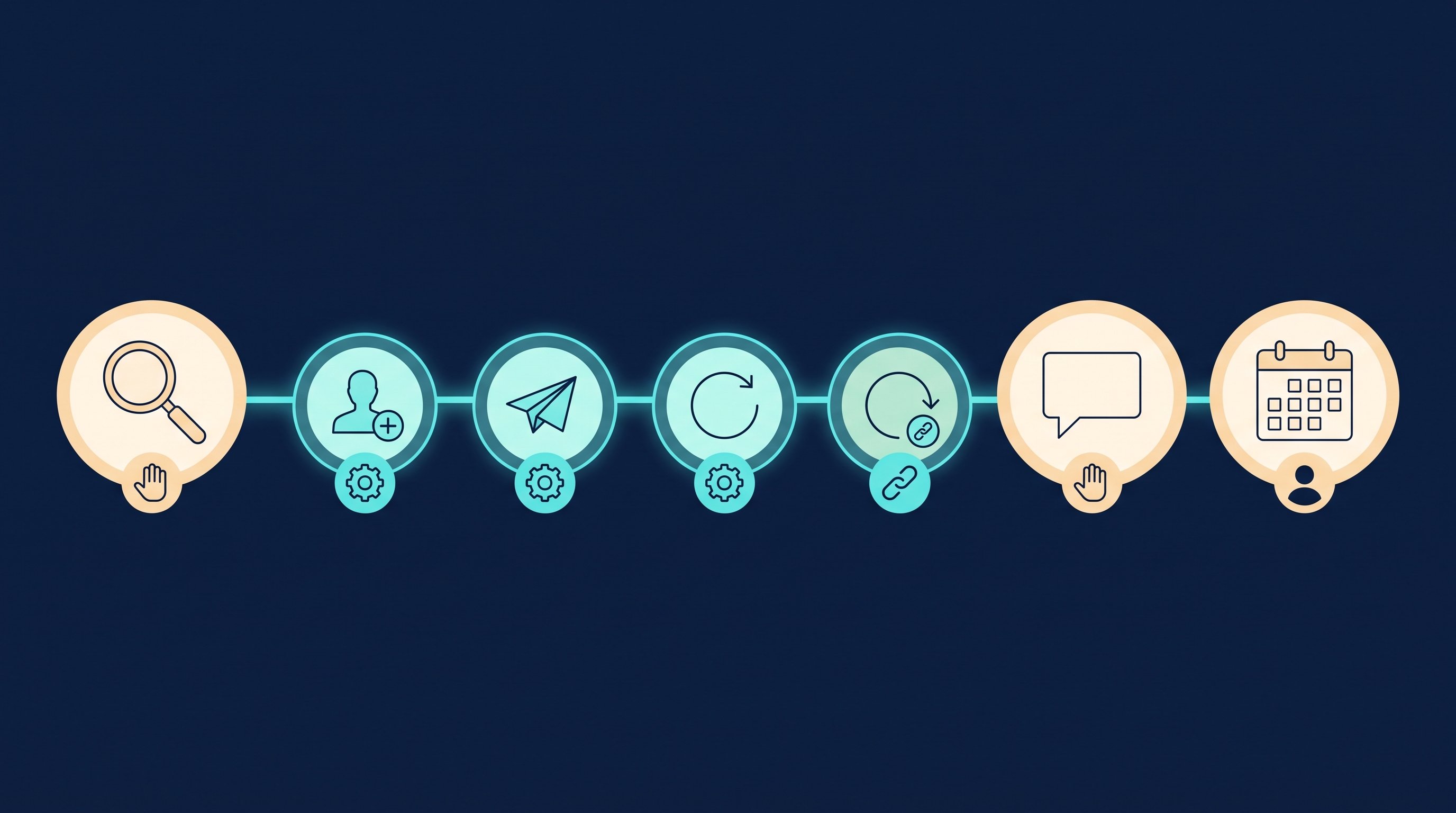
- Search and filter your audience: not measured.
- Open and follow 40 profiles: about 60 minutes.
- Read 40 profiles, find a reason to reach out, send a connection request: about 120 minutes.
- Check about 10 new contacts and write them the first message: about 15 minutes.
- About 10 follow-ups to contacts from previous weeks who haven't replied, the last one with a booking link: about 12 minutes.
- Withdraw 40 old, pending requests: about 8 minutes.
- Read replies, send two times and the link, confirm the booking: not measured.
That's about three and a half hours of pure clicking per week. With 25 percent acceptance, you get about ten new contacts. At about 5 percent meetings from accepted contacts, that's roughly one meeting every two weeks.
Steps 2 to 6 are the same for every contact. Step 7 is the one in which a reply turns into a meeting.
How it works with CompLeadly
CompLeadly is a desktop app that runs on your computer. It takes over steps 2 to 6. It doesn't book meetings: the calendar in the app schedules when your workflows run. Booking happens through the link of your meeting scheduling tool.
- Audience (you): A LinkedIn people search, a Sales Navigator search, a saved Sales Navigator search or an imported Excel list becomes an audience.
- Profile visit and connecting (software): with or without a note.
- First message (software): After acceptance, a first message goes out, with placeholders such as the first name. If you want, only to contacts whose chat is still empty.
- Follow-ups (software): You set up one or more follow-ups. Each one only goes out once the previous message has gone unanswered for as many days as you set. In the last one, you write your booking link as text. If the contact replies, the automated messages stop.
- Replies (you, with Smart Chat as a separate package): With Smart Chat, your LinkedIn messages sit in CompLeadly. You filter for unanswered chats, create categories such as "link sent" and "meeting booked", and assign chats to colleagues, who don't need access to your LinkedIn profile for that. Smart Chat Lite includes message templates, so your reply with two times and the link is ready to go.
- Meeting (your contact): They book through your link in Calendly, HubSpot, Bookings, Cal.com or Zeeg. There's no connection between CompLeadly and these tools for this, and you don't need one.
Connecting, first message and follow-up already run in the free version, with daily limits such as 2 connection requests, 10 messages to 1st-degree contacts and 1 follow-up per day, each step started on its own. Whole workflows and recurring schedules start with Basic at $29.99 per month, or $24.99 on the yearly plan; one-off schedules start with Premium. Smart Chat Lite is a separate package at $29.99 per month, or $24.99 on the yearly plan. All prices excl. VAT, as of October 2026, on the pricing page. You start with a 10-day trial with all features, no credit card. When the sequence runs and how to set its time window is explained in Schedule LinkedIn messages.
Time calculation
The table works out the clicking for 100 contacts you send requests to, up to the booked meeting.
| Step | Minutes by hand | Minutes with CompLeadly | Time saved |
|---|---|---|---|
| Open profile and follow | 1.5 | 0 | 1.5 |
| Read profile, find a reason, send connection request | 3 | 0 | 3 |
| Withdraw pending request | 0.2 | 0 | 0.2 |
| First message after acceptance (per accepted contact) | 1.5 | 0 | 1.5 |
| Follow-up without a reply (per accepted contact) | 1.2 | 0 | 1.2 |
| Total for 100 contacts | 8 h 58 min | 0 min | 8 h 58 min |
| Per accepted contact | 21.5 min | 0 min | 21.5 min |
| Per booked meeting | 7 h 10 min | 0 min | 7 h 10 min |
Example calculation · Acceptance rate 25%, Booking rate 5%
Example calculation. Assumptions: minutes per step are the measured execution time of the software from two CompLeadly accounts in 2026 (average per action: following 90 seconds, visiting and connecting 180, first message 91, follow-up 69, withdrawing 12), a lower bound for manual work. Acceptance rate 25 percent as the middle of the range of 13 to 37 percent measured in the audiences of these accounts. Meeting rate about 5 percent of accepted contacts, our own estimate, not counted. Withdrawing is counted for all contacts you sent requests to and the follow-up for all accepted contacts, so both are an upper bound. With CompLeadly 0 minutes per contact, because the software runs these steps; the one-time setup of audience and texts isn't included. Replies, suggesting times, setting up the booking tool and the call itself take the same time either way and aren't included.
The rate varies with the audience. Plug in your own numbers once you have them. Your booking tool helps here: it counts the booked meetings, and you only need to divide them by the accepted contacts.
Seven hours of clicking per meeting is almost a full working day. The tool saves you the two messages about the time. It doesn't save you the seven hours before that. If you'd rather hand the role behind it to a person, the costs are in Appointment setting on LinkedIn.
Recruiting and job hunting: the same link, different conversations
Recruiting: For intro calls with candidates, a booking link is especially handy when they can only talk outside their working hours. Create a separate event type for this and also open slots in the early evening. With your own Recruiter license, CompLeadly turns a Recruiter search, a pipeline or a saved search into an audience. Connecting, first message and follow-ups run until someone replies. You send the link as soon as a candidate shows interest. Wording for every stage is in LinkedIn recruiting messages, and the process is on the page for recruiters.
Job hunting: If you're looking for a job, the direction flips. A hiring manager won't book a meeting with you. You ask for 15 minutes and suggest two time slots yourself. If the person has a booking link on their profile, use it, because that's the invitation. In CompLeadly, a people search for hiring managers at your target companies becomes an audience. Profile visit, connecting, first message and follow-up already run in the free version within its daily limits. For twenty target companies, that's enough. What to avoid along the way is in LinkedIn mistakes when job hunting.
How sales teams split the process is shown on the page for sales teams.
FAQ: meeting scheduling tools
Which meeting scheduling tool is free?
Calendly, HubSpot Meetings, Cal.com and Zeeg have free versions with no time limit; Cal.com includes unlimited event types, Calendly one. Microsoft Bookings only comes with a Microsoft 365 subscription such as Business Basic (as of October 2026).
Which meeting scheduling tool stores data in Germany or the EU?
Zeeg says it hosts all data on servers in Germany, and for tenants in the EU or Germany, Microsoft commits to storing calendar items in Exchange Online there. HubSpot offers an EU data center with a subscription, Cal.com lists EU hosting from the Organizations tier, and Calendly stores data in the US.
Where do I put my booking link on LinkedIn?
In three places on your profile: in your contact info as one of up to three websites, in the Featured section as a link and, if LinkedIn has enabled it for you with Premium Business, Sales Navigator or Recruiter Lite, as a custom button "Book an appointment". In the chat, send it only once your contact shows interest.
Should I put my booking link in the first message?
No. Send it only after an interested reply, together with two concrete times, and in an automated sequence at most in the last follow-up.
Does CompLeadly book meetings?
No. On LinkedIn, CompLeadly takes over the steps up to the reply: profile visit, connecting, first message and follow-ups. Your contact books the meeting through the link of your meeting scheduling tool, which you write into a message or a follow-up.